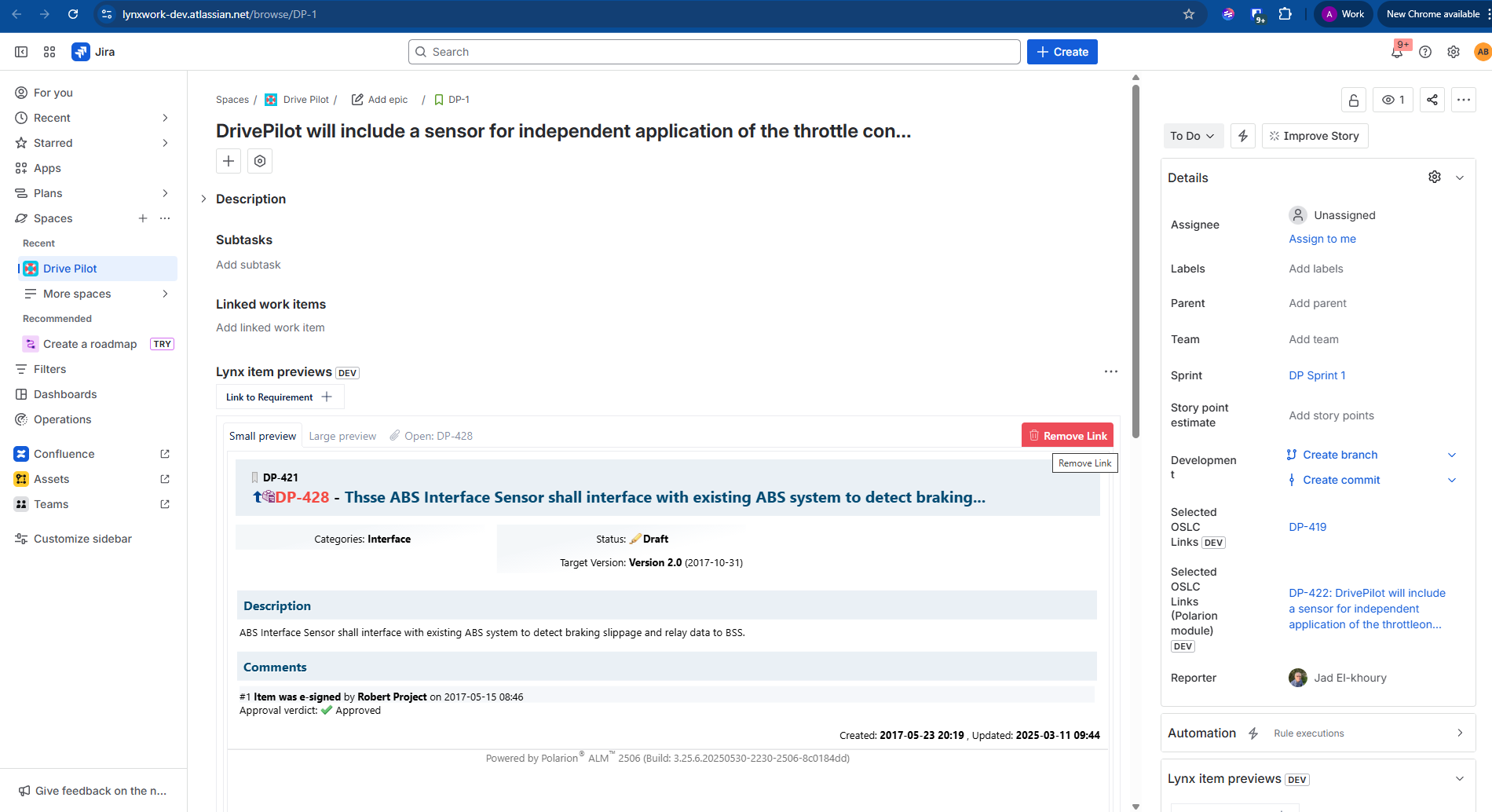
Lynxwork Jira OSLC Client - Installation and Usage Guide
Select the subsection that matches your Jira setup:
Installation
Install on Jira Data Center
-
Upload the provided .jar extension file to the Jira Data Center plugin directory:
atlassian/application-data/jira/plugins/installed-plugins -
Restart the Jira server
-
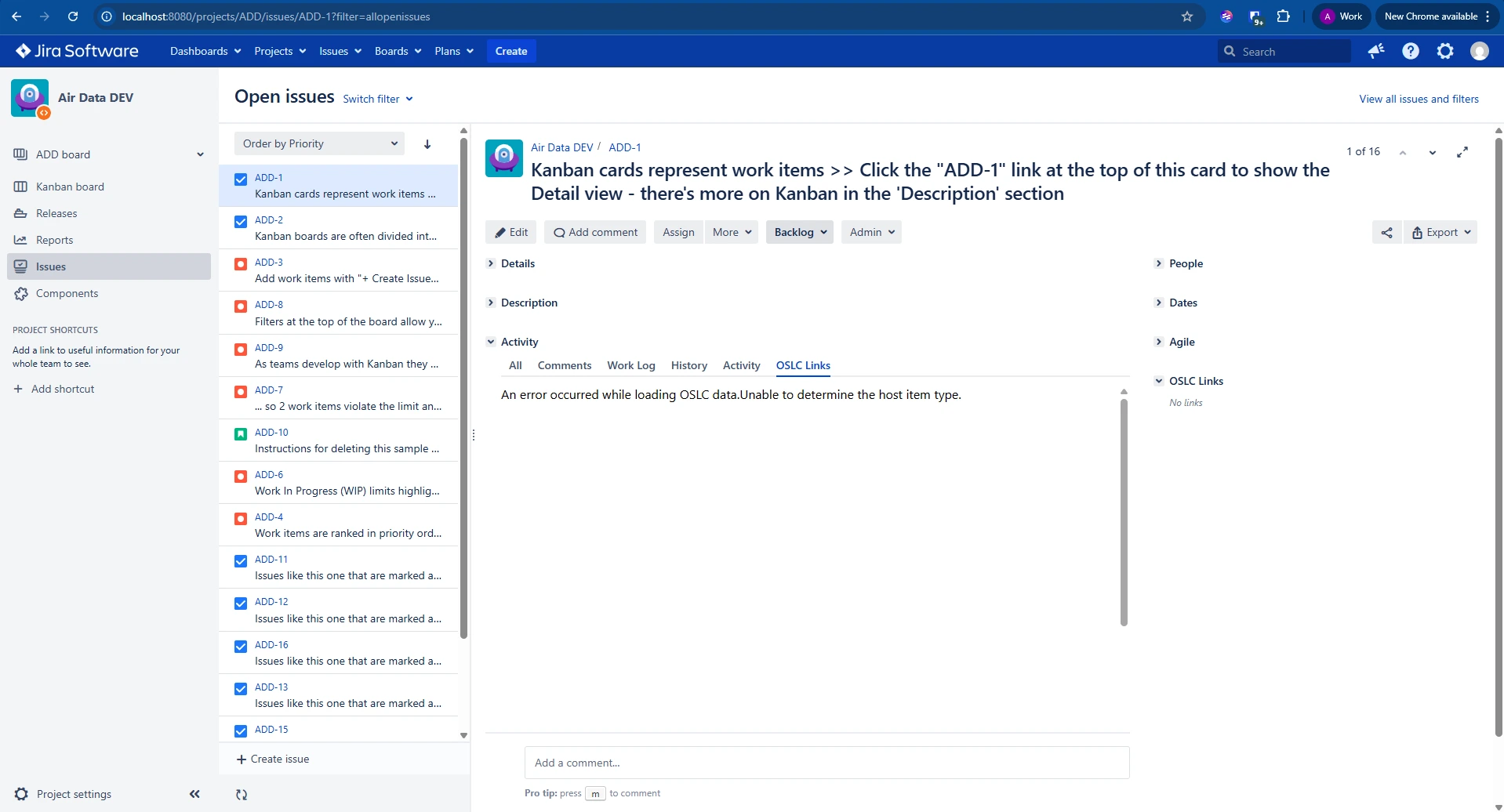
For the desired project, navigate to Project settings
-
Find and select Lynxwork Jira OSLC Client to confirm that the extension is successfully installed.
You are now done with the installation. It is now time to configure your extension.
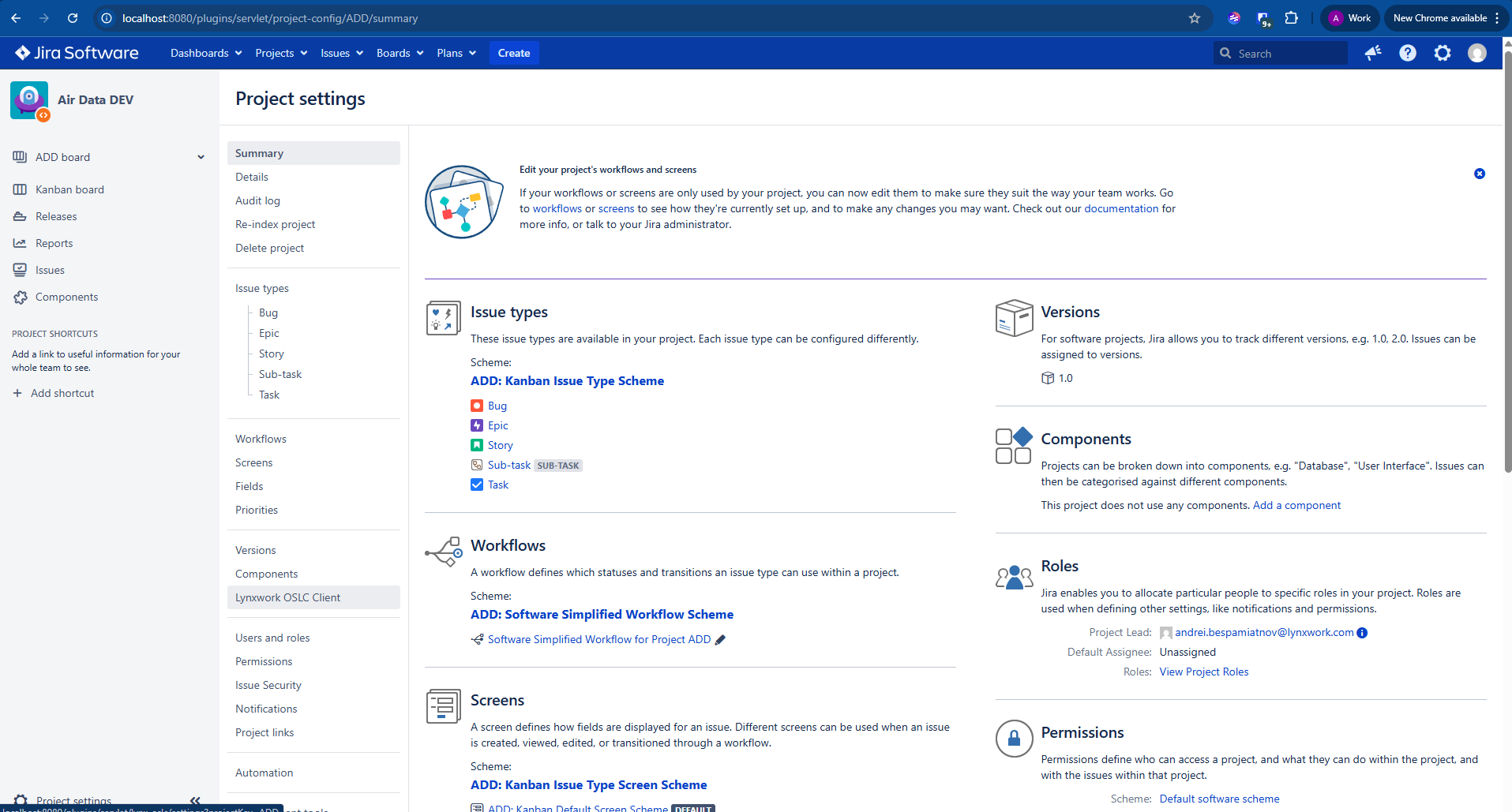
Install on Jira Cloud
-
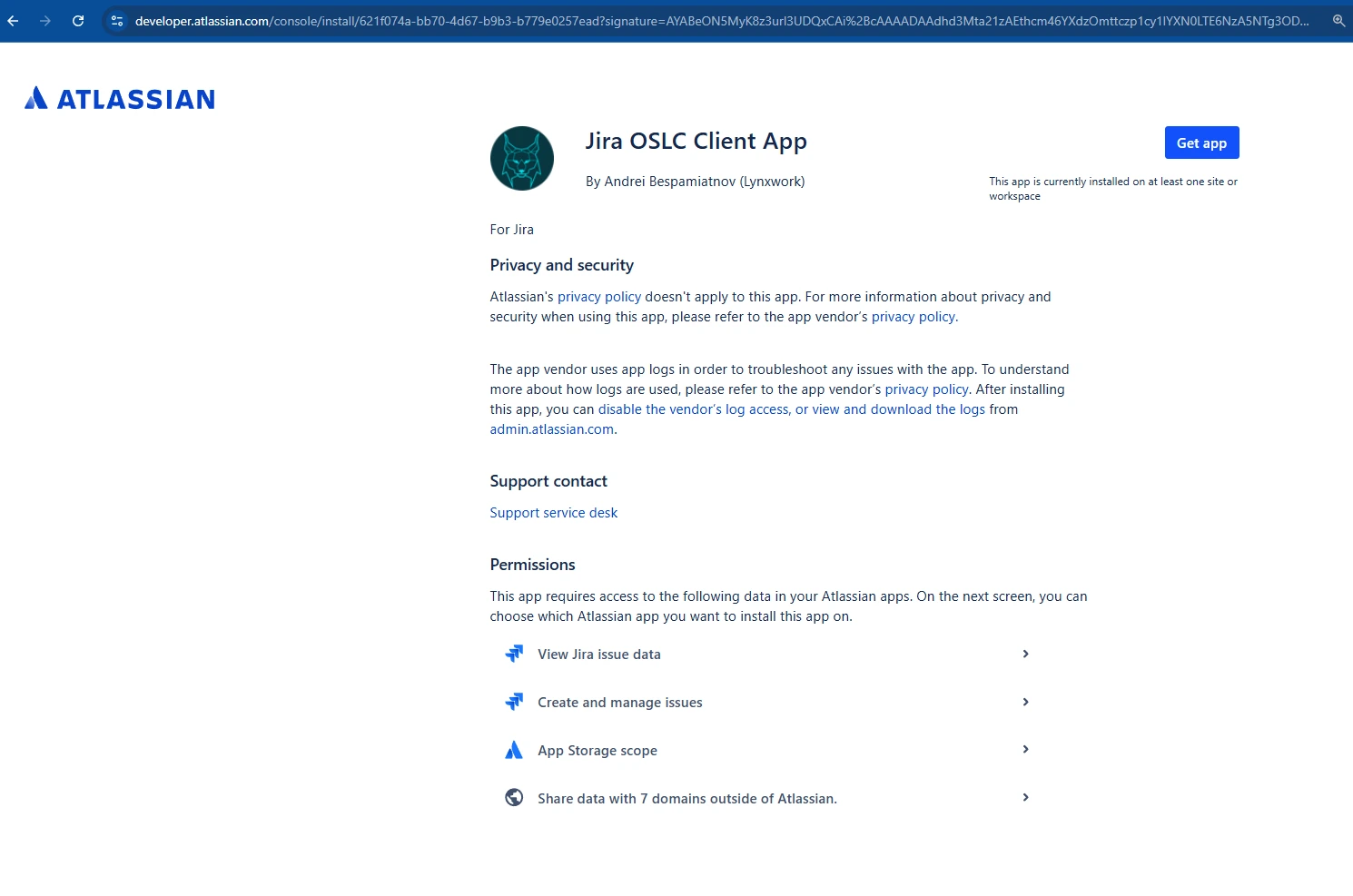
In a web browser, Open the plugin distribution link obtained from Lynxwork.
-
Click on Get app and select a site to install this app on
Enable REST API
-
You may need to select a particular site if you have access to multiple sites.
-
Select Apps > Sites >
{YOUR_SITE} -
Select Connected apps
-
Under Lynxwork Jira OSLC Client, select View App Details
-
Under App REST APIs, select Enable app REST APIs
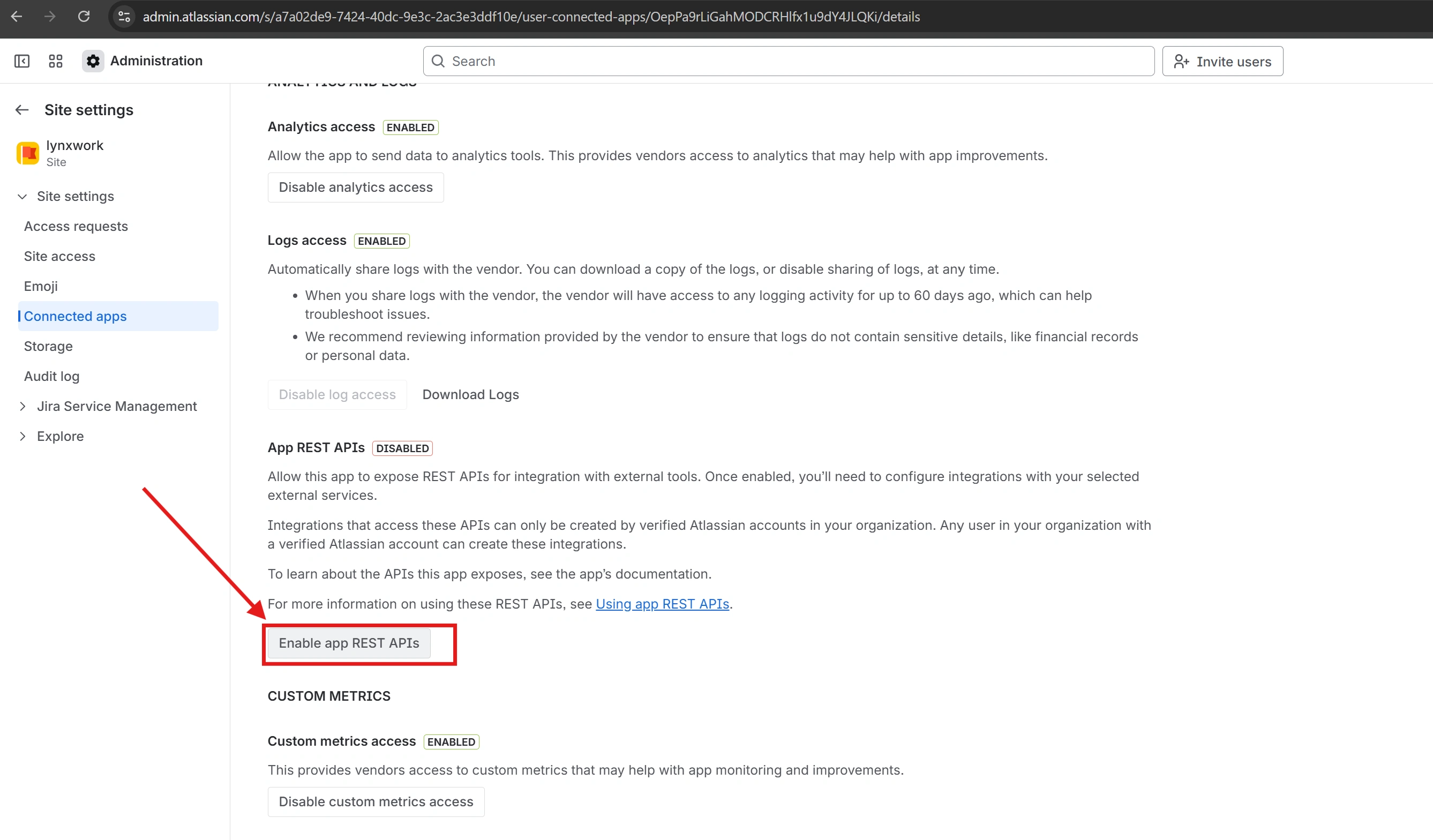
You are now done with the installation. It is now time to configure your extension.
Later updates: Update Atlassian App.
Configuration
Now it is time to configure the extension. You first configure it at the organisation level, then you make project-specific configurations.
From almost any page, select Apps > Manage apps
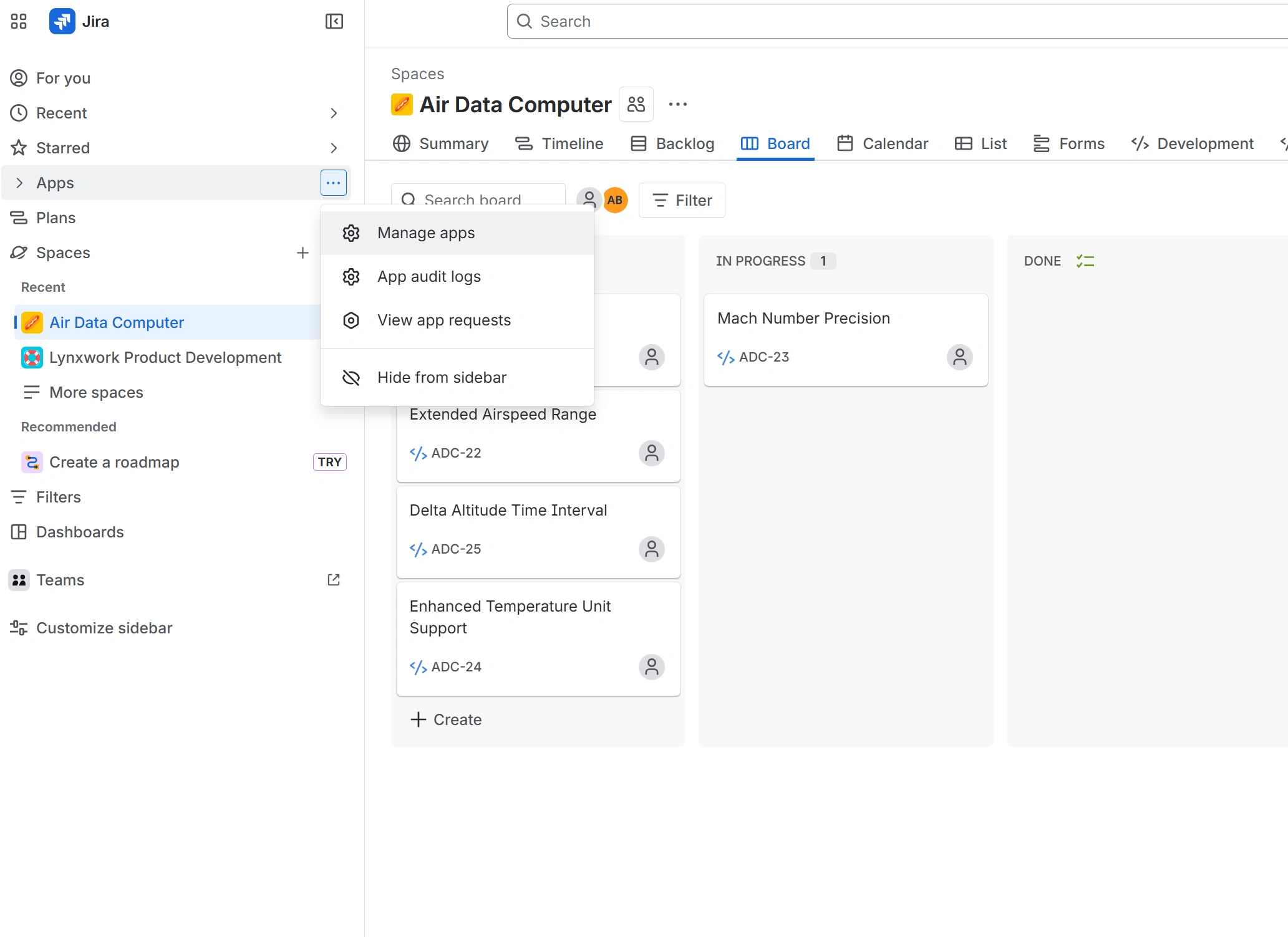
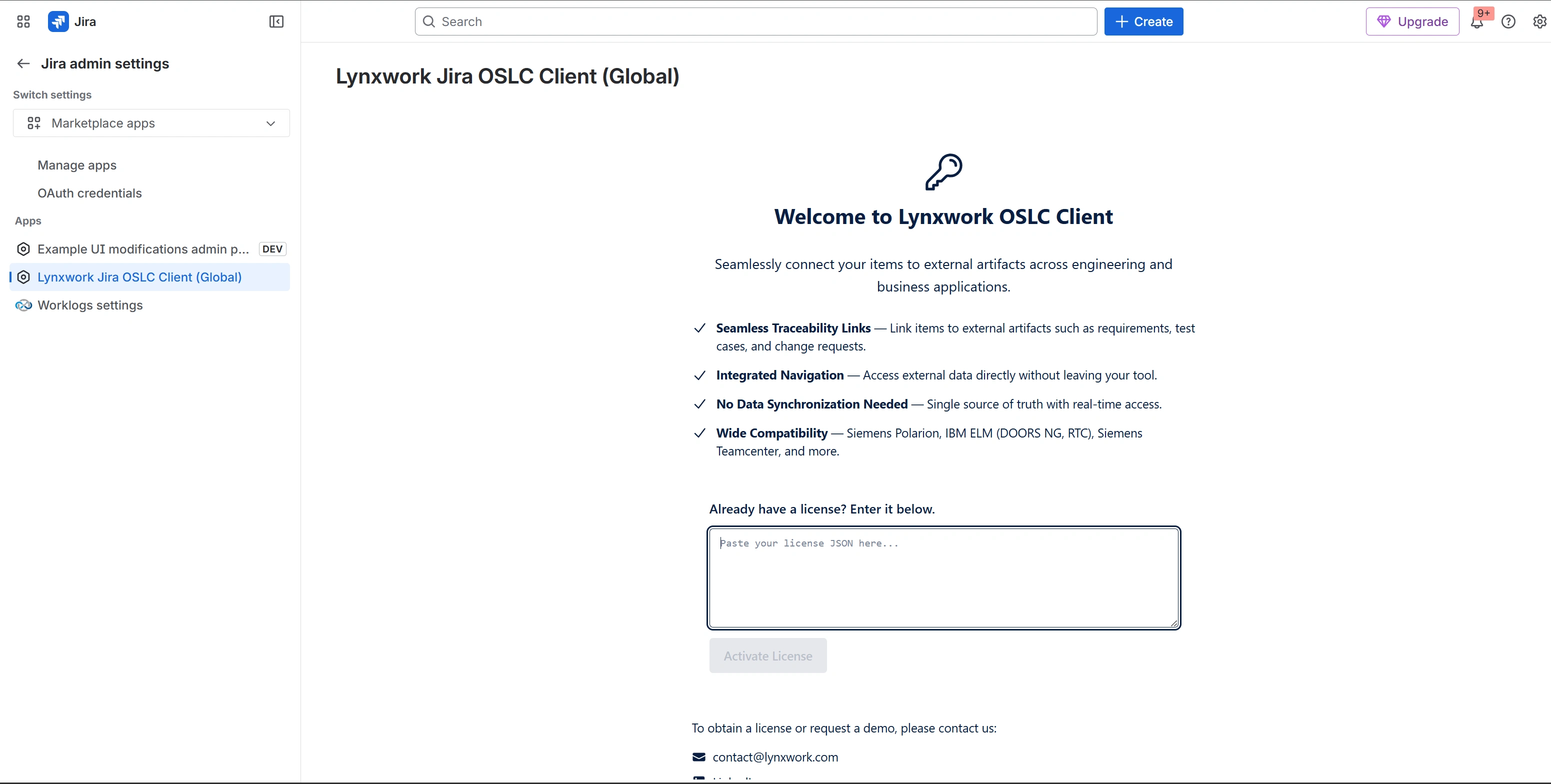
Activate your license
-
Select Lynxwork Jira OSLC Client (Global)
-
Enter your license
Friends
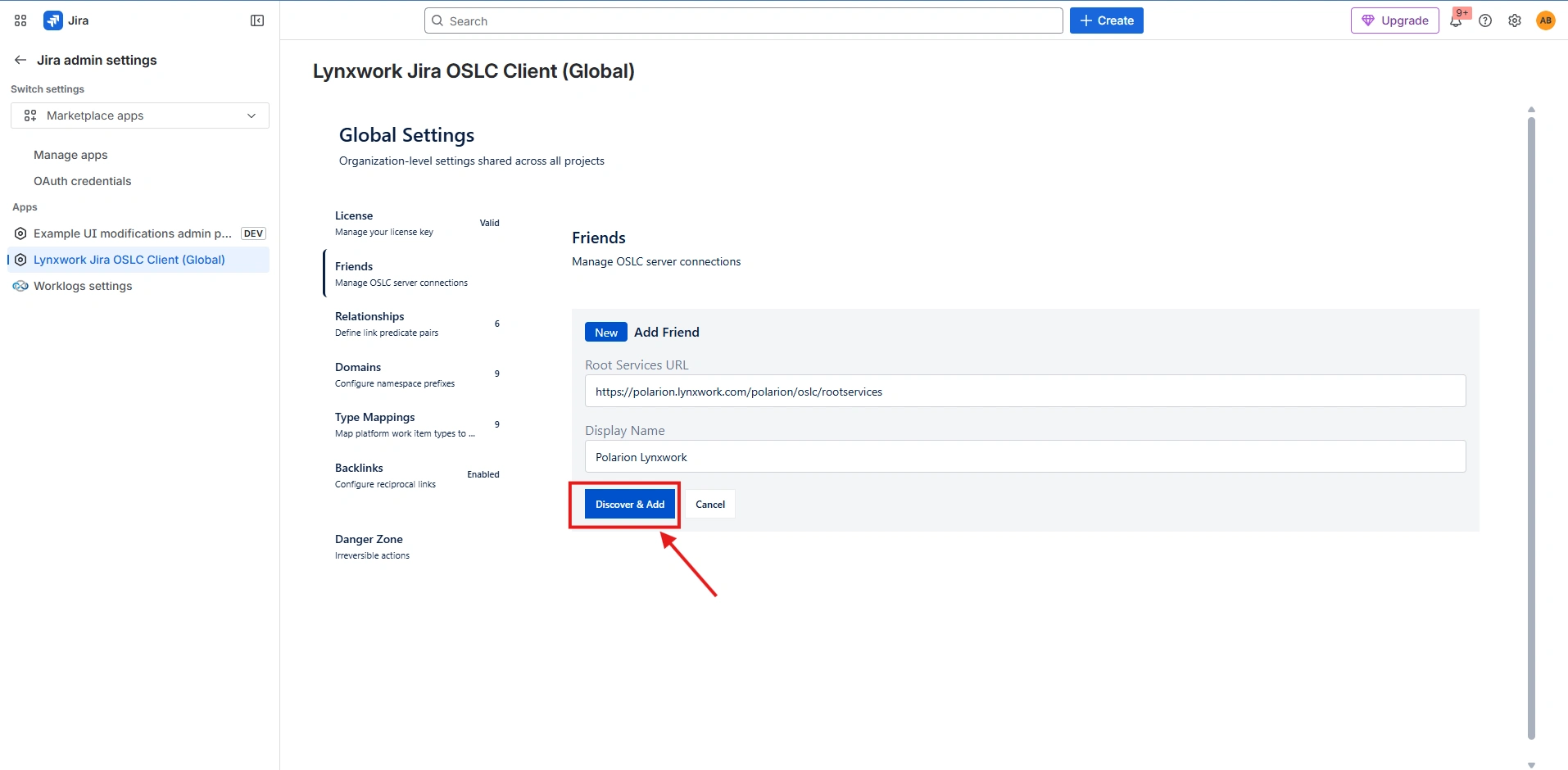
Now you are ready to connect Jira to external applications. Select Friends > Add Friend
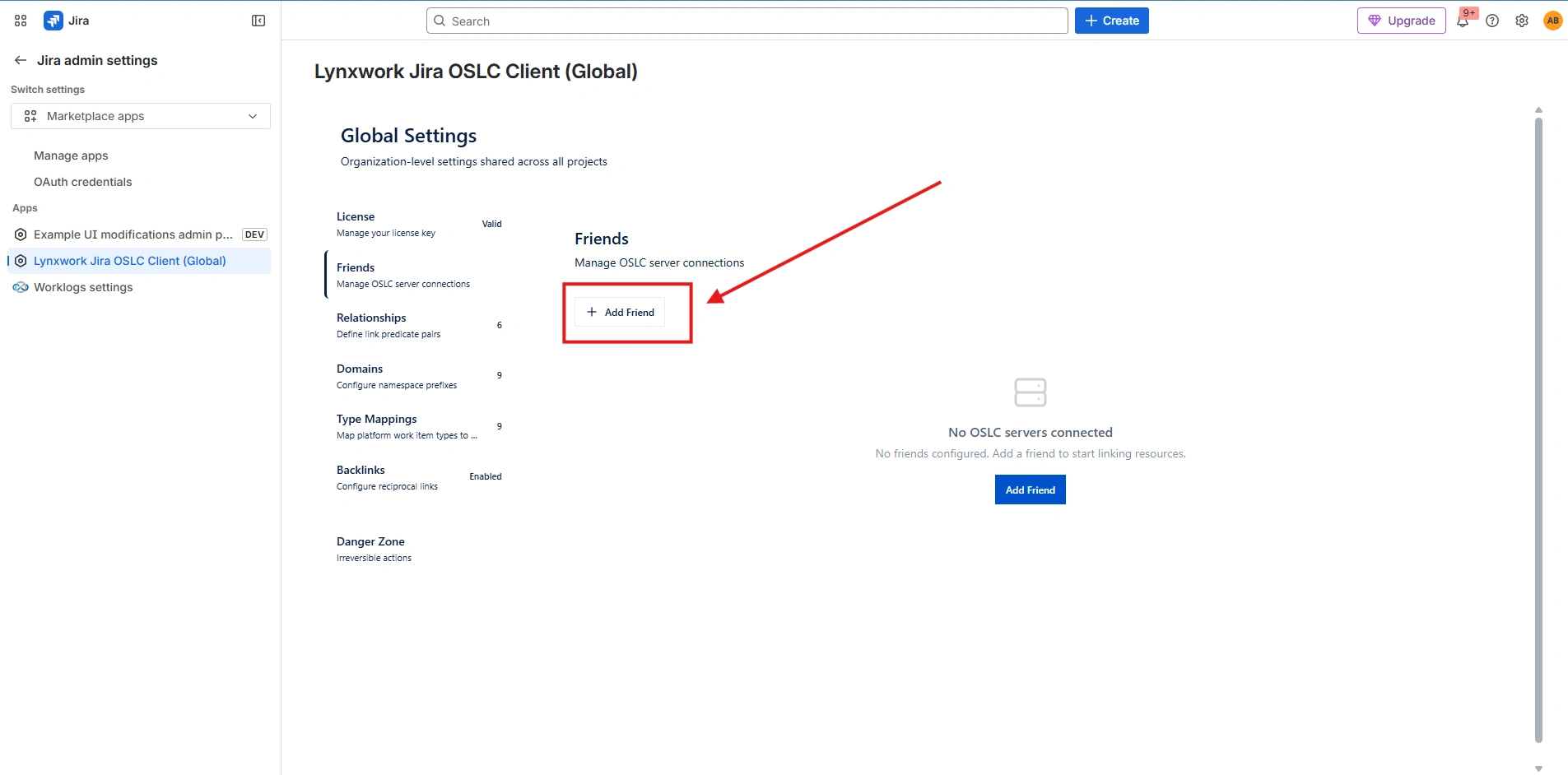
-
Fill required fields then select Discover & Add.
For example, to become friends with Polarion, the Root Services URL has the form
https://your-polarion-installation.com/polarion/oslc/rootservicesIf Polarion is the Friend, also apply Polarion 2512.
-
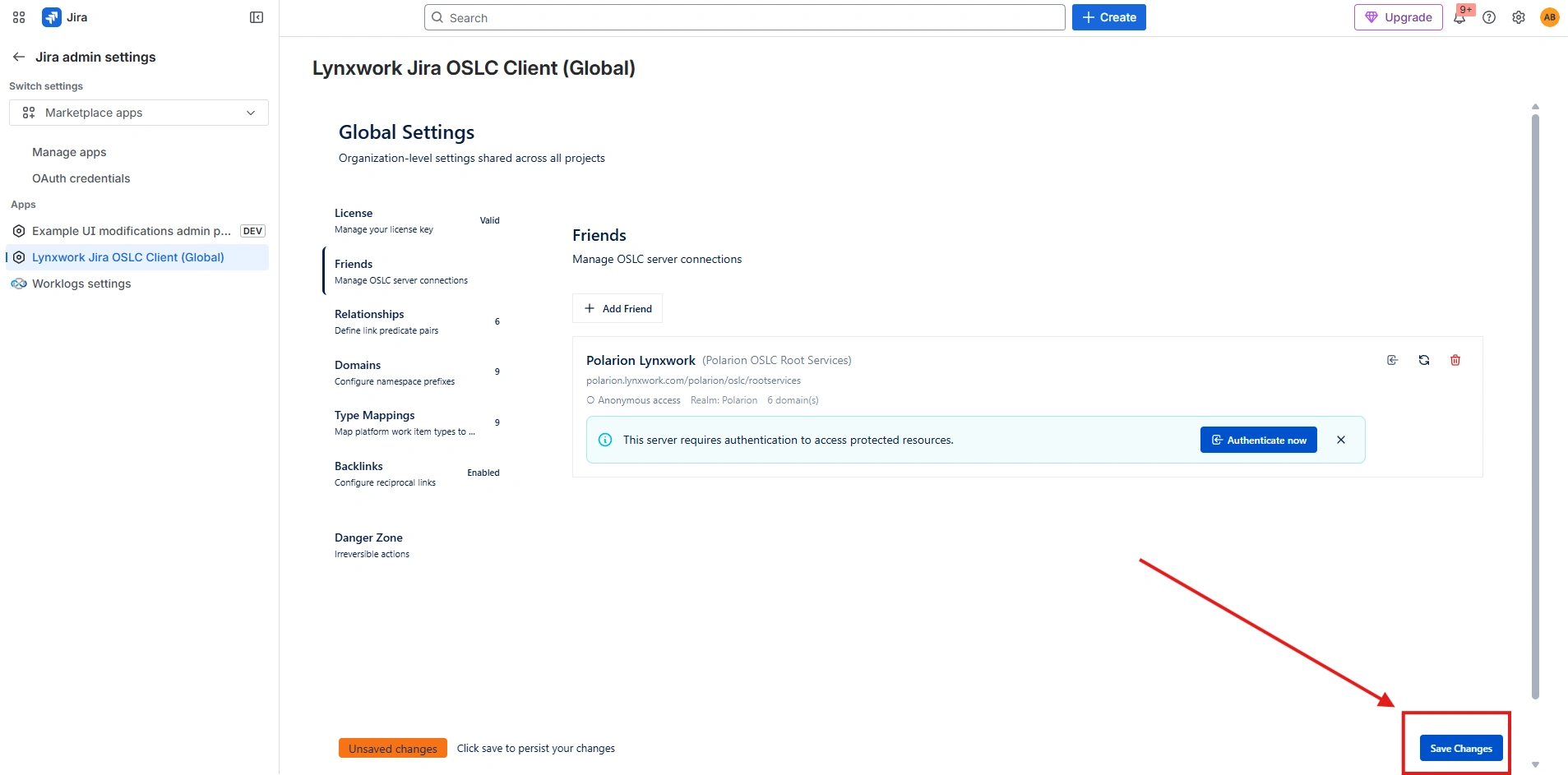
Select Save Changes
Relationships
Update the Relationships
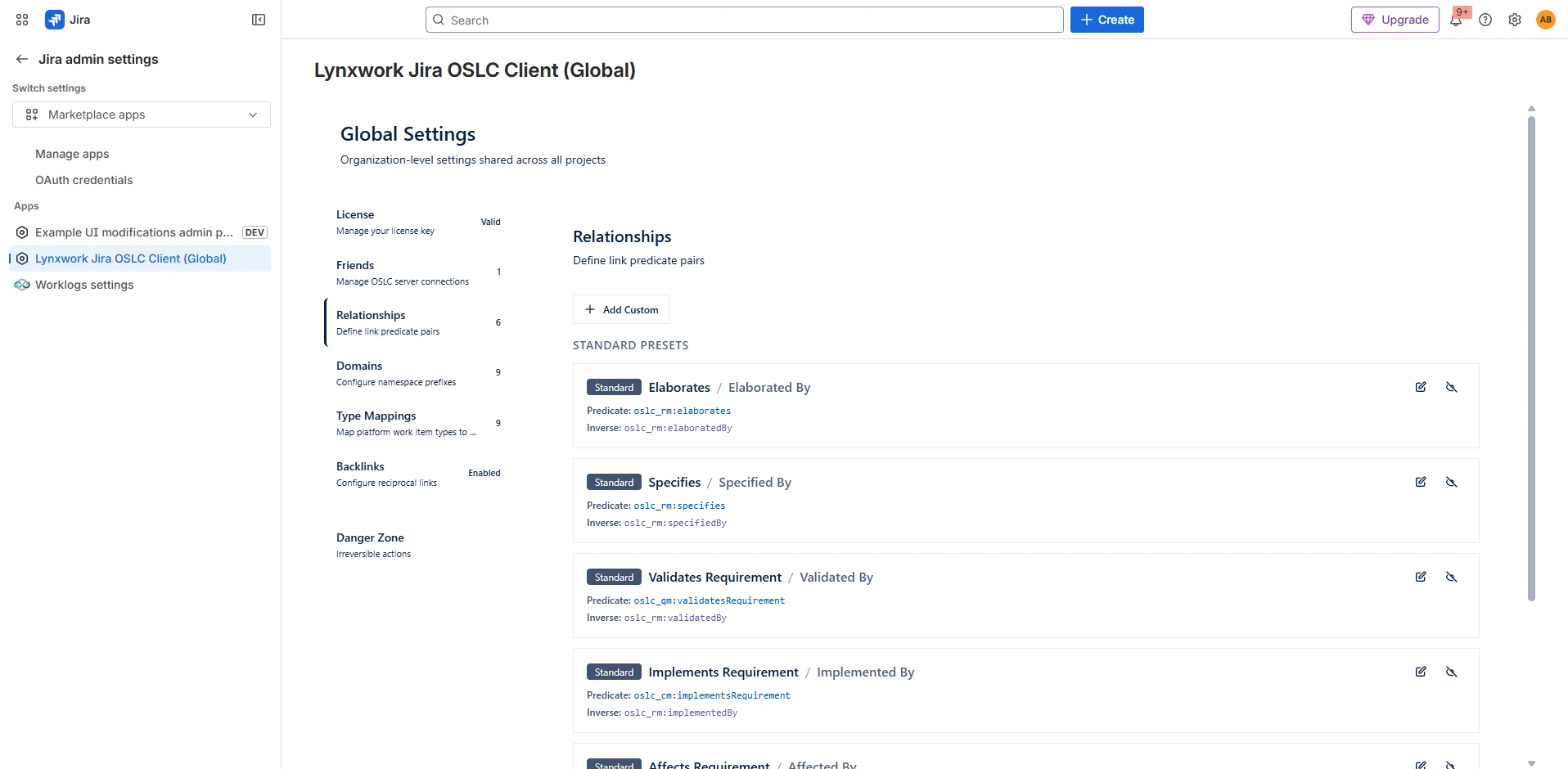
The Relationships section defines link predicate that describe how resources are connected across different applications, such as Requirement oslc_rm:validatedBy TestCase. These predicates provide a shared, neutral vocabulary that enables both applications to understand and interpret the links between their resources in a consistent way.
The extension includes standard presets (example, Affects Requirement, Validates Requirement) marked with a Standard badge. You can use them as-is, customize them, or add your own by selecting Add Custom — providing a Label, Property URI, Inverse Property URI, and an optional Inverse Label. Changes are buffered until you select Save Changes.
Domains
Update the Domains
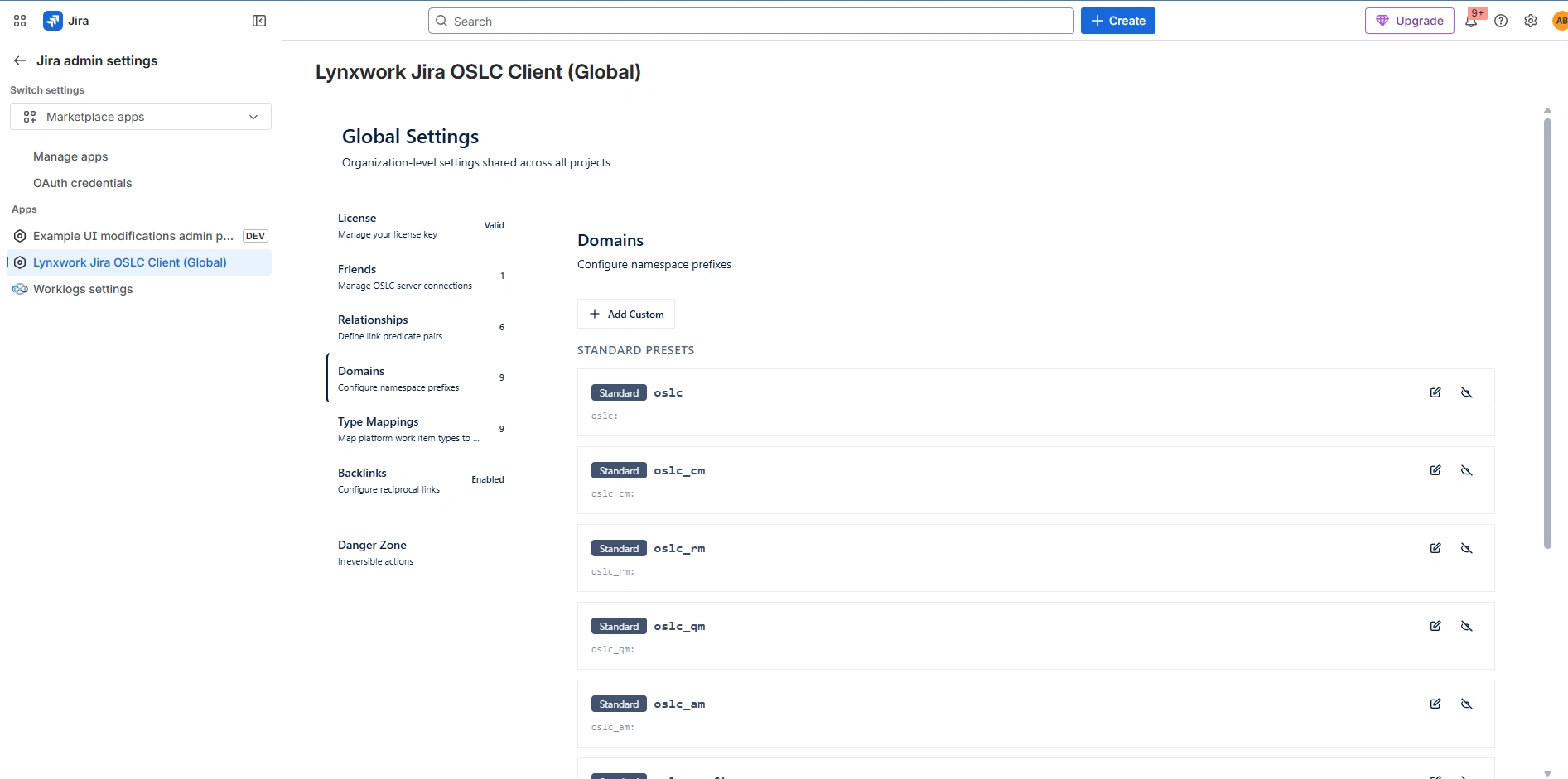
The Domains section manages namespace prefix definitions for CURIE (Compact URI) notation, turning long URIs into readable shorthand like oslc_cm:relatedChangeRequest. The extension ships with 9 standard prefixes covering core OSLC specs (oslc, oslc_cm, oslc_rm, oslc_qm, oslc_am, oslc_config, dcterms, rdf, rdfs). You can register additional namespaces via Add Custom by providing a Prefix and Namespace URI. Changes are buffered until you select Save Changes.
Type Mappings
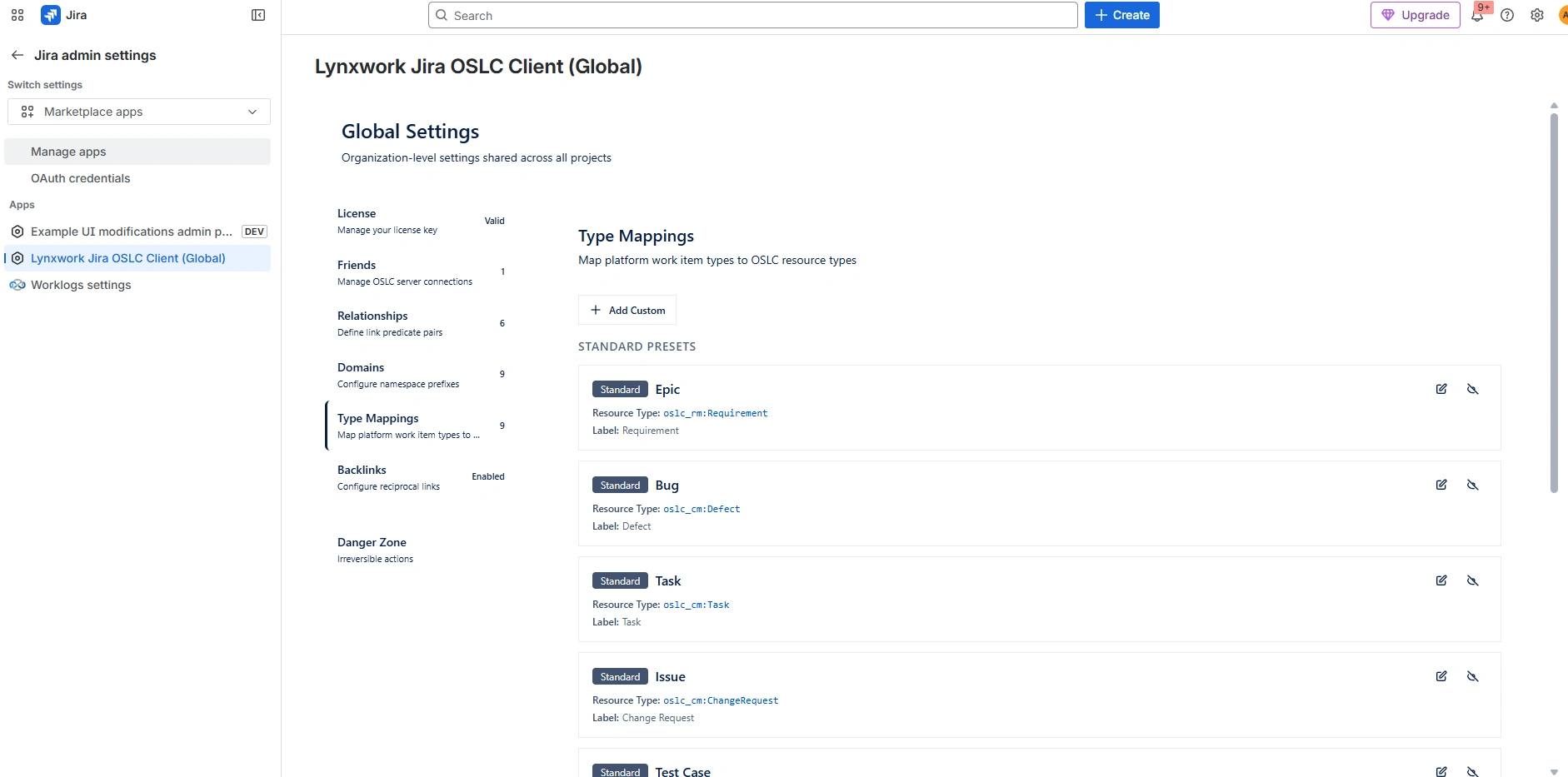
Update the Type Mappings
The Type Mappings section define how your platform’s work item types (such as Bug or User Story) correspond to OSLC resource type URIs (for example, oslc_cm:Defect). This mapping ensures that work items are interpreted consistently when exchanged between applications.
The extenstion provides standard presets for common types. If your organization uses custom work item types, select Add Custom to define additional mappings. Changes are buffered until you select Save Changes.
Backlinks
Update Backlinks
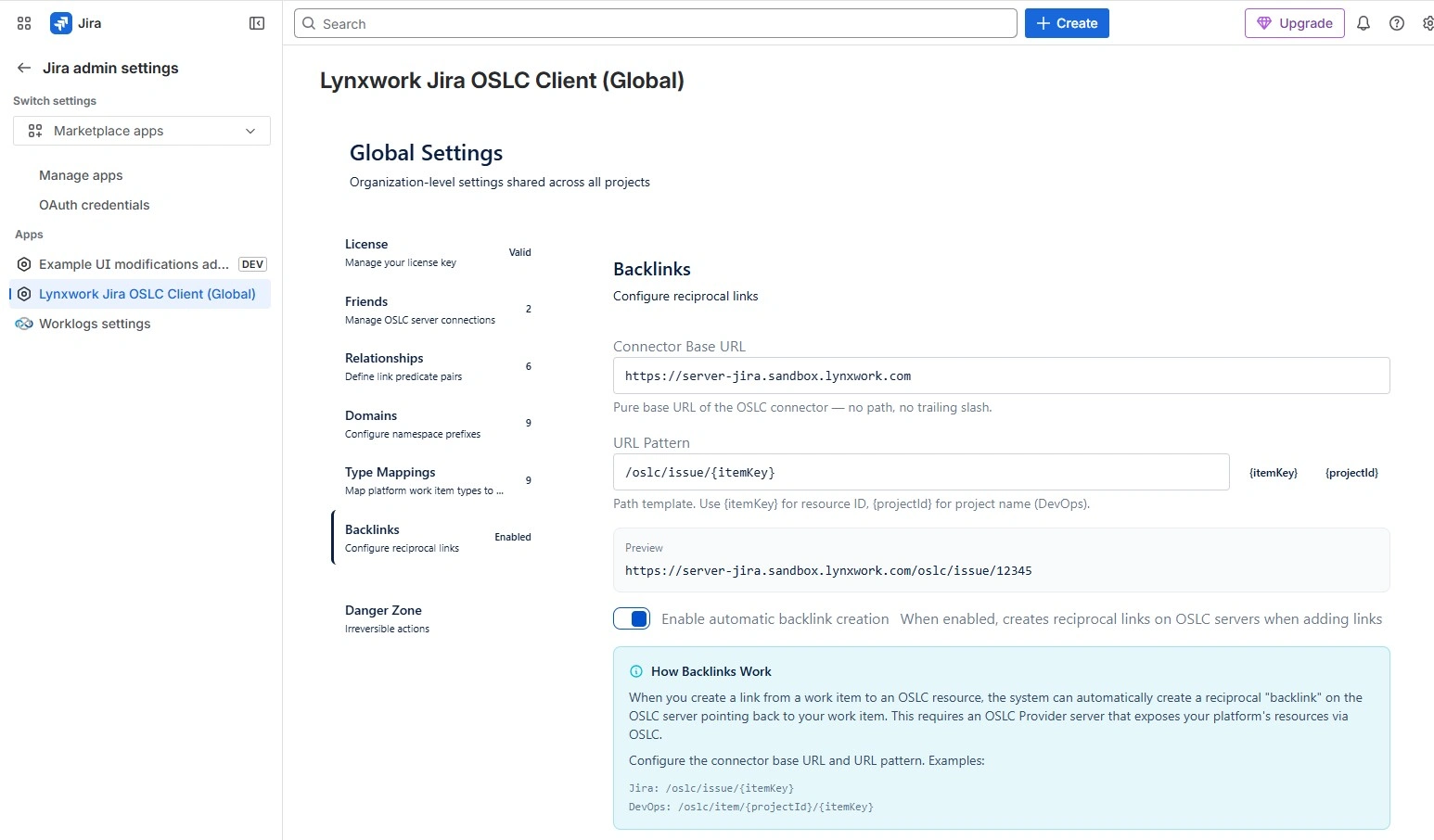
The Backlinks section configures automatic creation of reciprocal links. When a work item is linked to an OSLC resource in a friend application, the extension automatically creates a corresponding backlink on the remote server that points back to the original item.
If you desire this functionality, enable Enable automatic backlink creation and enter
- Connector base URL — This should be the same as the
{connector_base_url}of the friend OSLC server. For Azure DevOps, that value is defined in Azure DevOps Server. For Polarion, see Polarion 2512. - URL Pattern — should simply be
/oslc/issue/{itemKey}
Project configuration
You are done with the configuration at the organisation level. Now, it’s time to do project/space-specific configurations.
-
Go to your specific project.
-
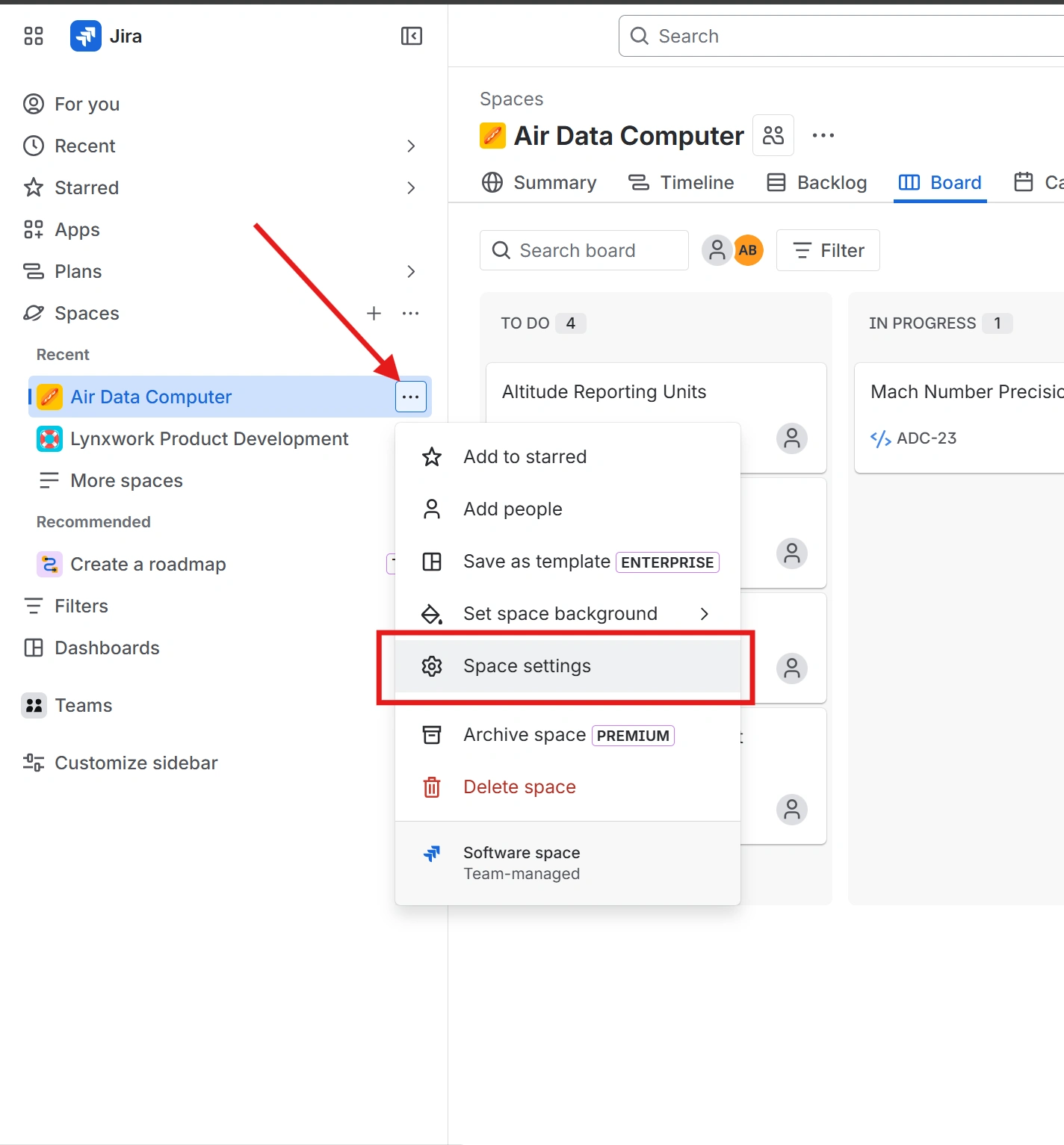
Navigate to the Space settings
-
Select Apps > Lynxwork Jira OSLC Client to view its settings for this particular project.
Linking Configuration
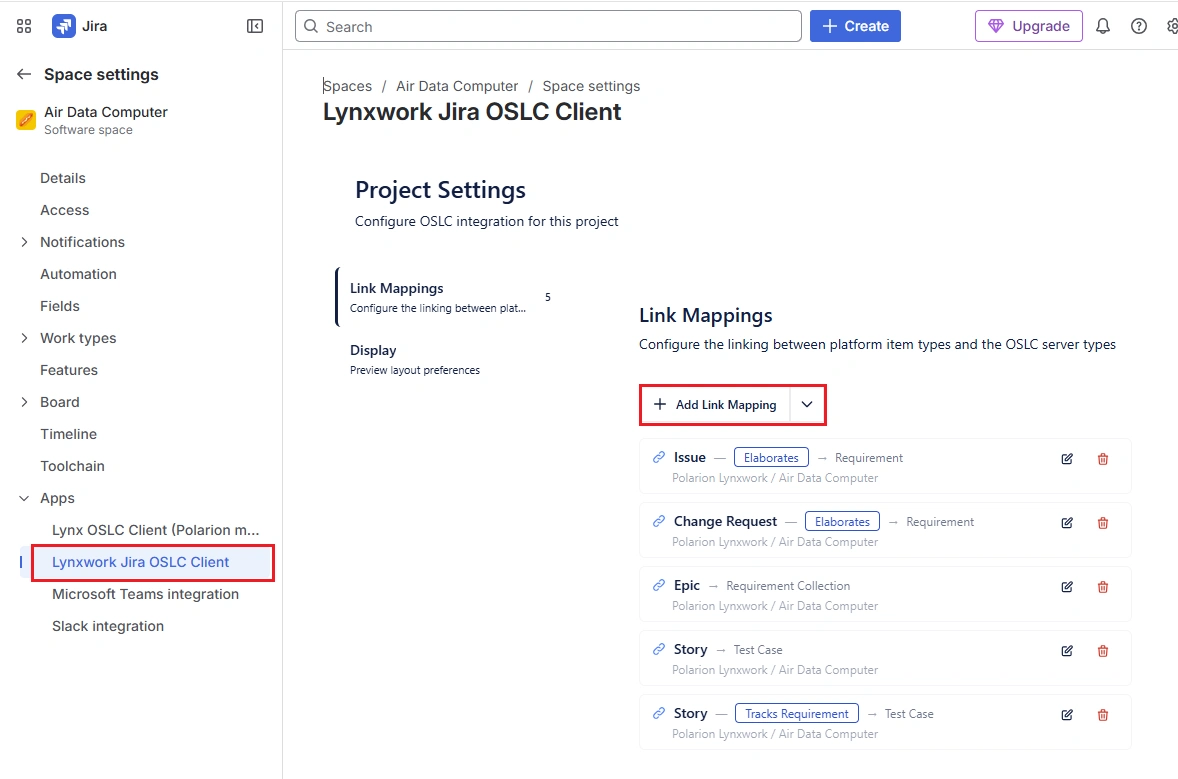
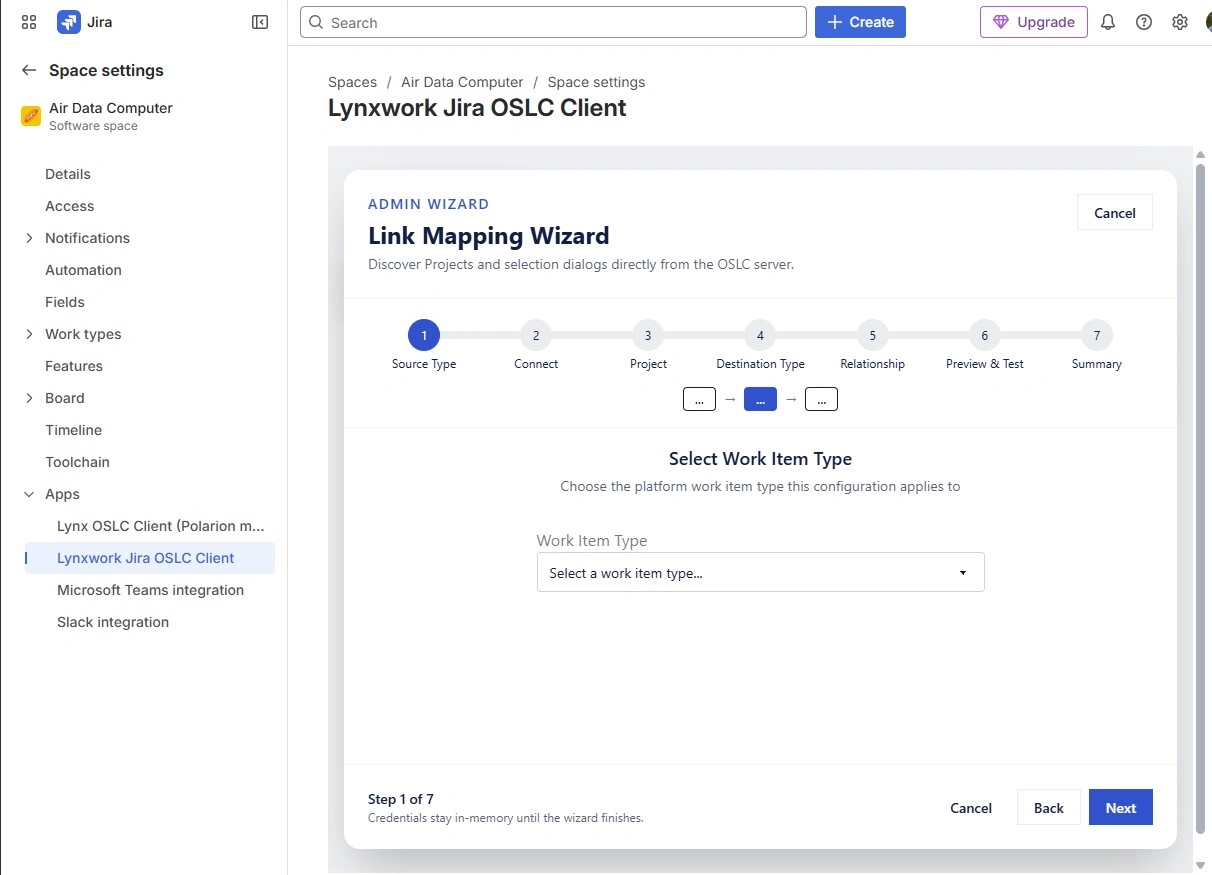
To configure how a paritcular item type can connect to items in a Friend application, select Link Mappings then Add Link Mapping. A wizard is activated.
Item Type
-
The wizard opens with the Select Work Item Type step.
-
Select the desired item type.
-
Select Next
Friend
-
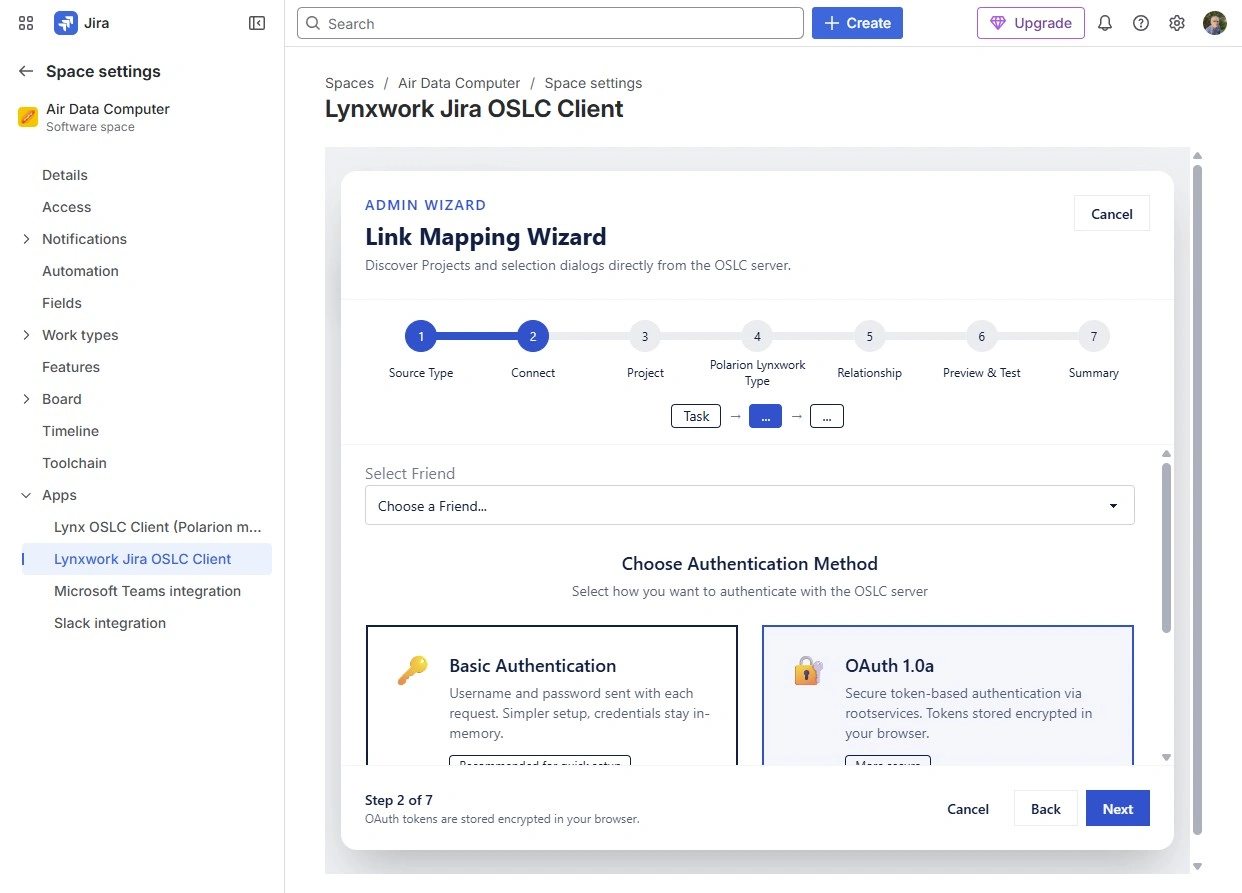
On the Connect step, select a registered Friend from the dropdown.
-
Select how the extension will connect to the chosen Friend
- OAuth 1.0a — secure token-based authentication, tokens stored encrypted in your browser.
- Basic Authentication — A simpler setup with a username and password (credentials are only saved temporarily in-memory)
-
Select your preferred method
- For Basic Auth, enter your Username and Password, then select Test Connection to verify
- For OAuth, complete the authentication flow in the popup that appears. Then select Discover Providers
-
Select Next
Friend Project
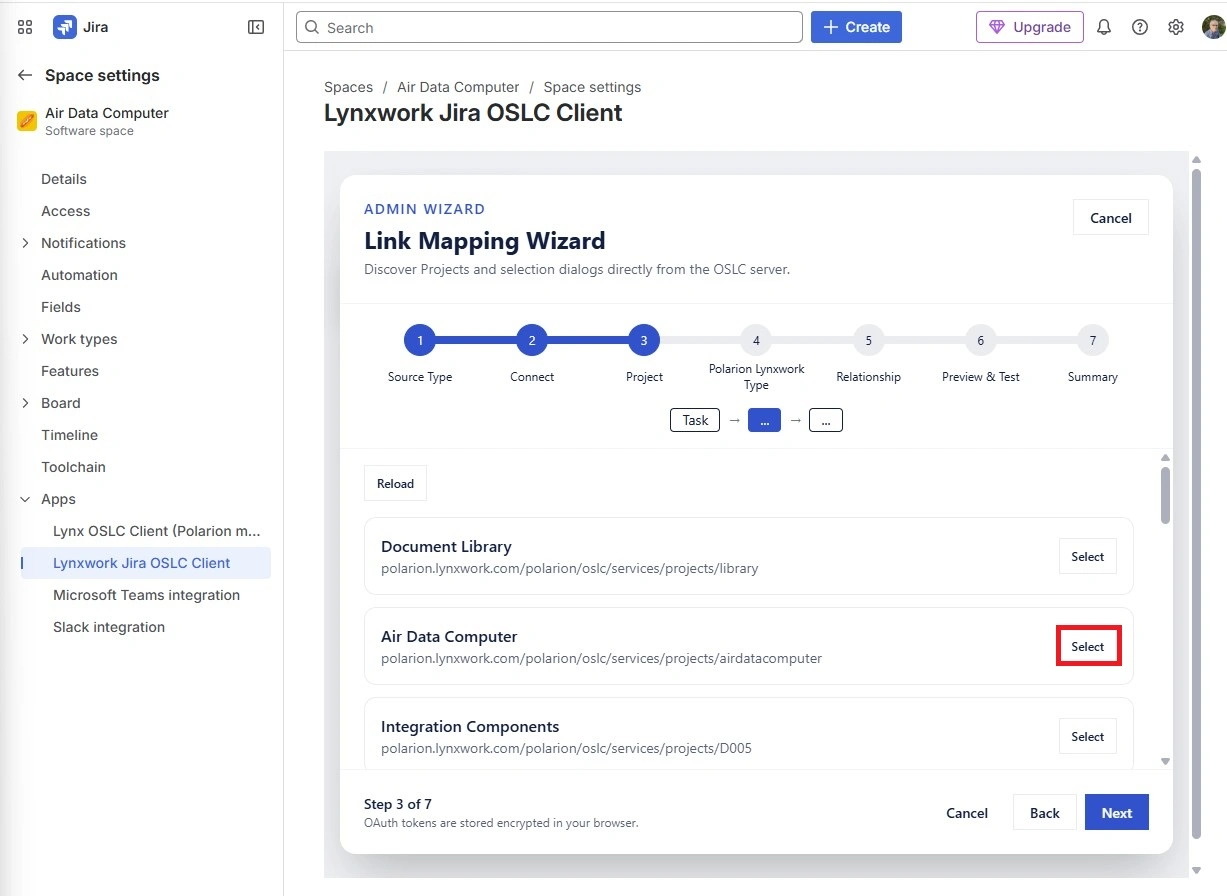
After a successful connection, the wizard lists the discovered set of Friend projects (otherwise known as Service Providers)
-
Press Select for the specific project you want to create links to.
-
Select Next
External Type
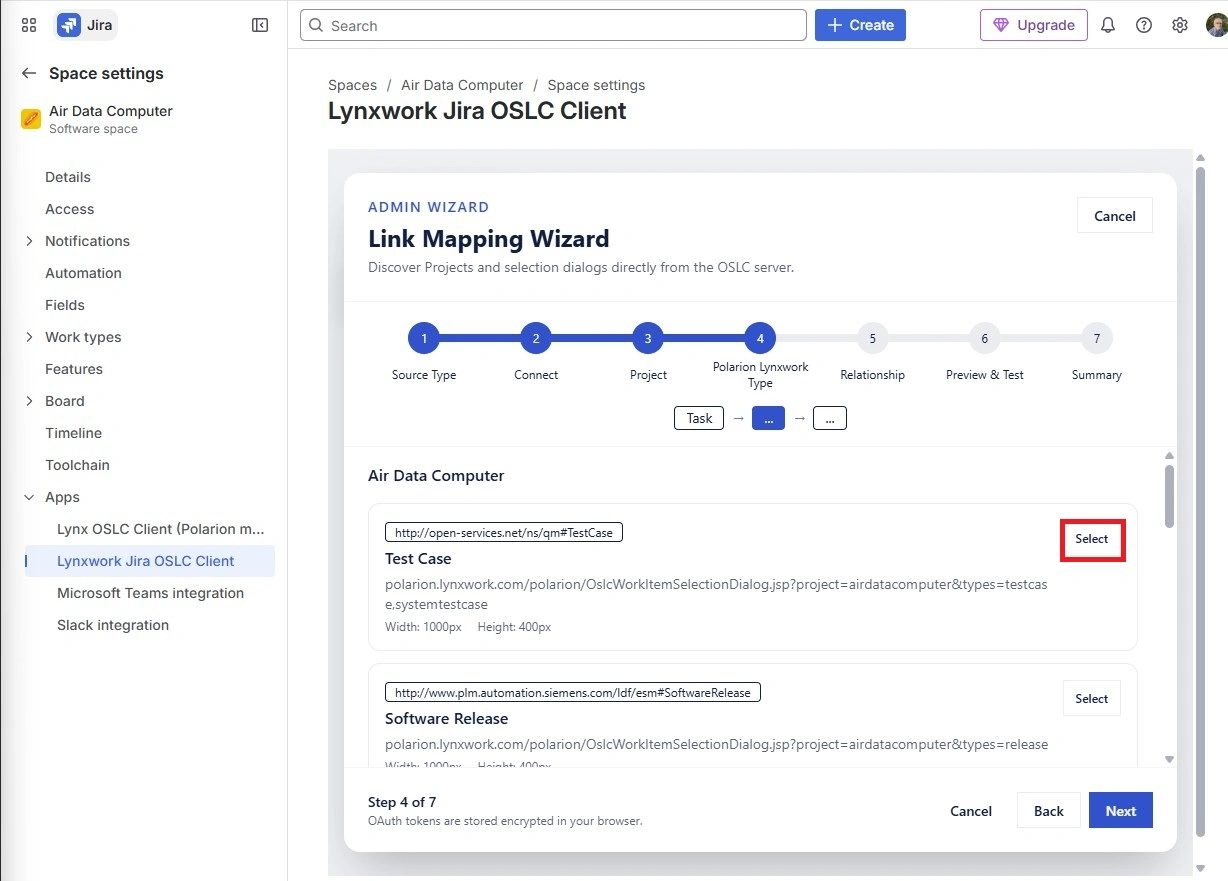
The wizard now displays the possible Friend item types available from the chosen project.
-
Press Select for the entry that matches the artifact type you want to link to (e.g., Requirements, Change Requests).
-
Select Next
Relationship Type
-
Choose the relationship that defines how links from your work items connect to the external resources. A Link flow summary appears at the bottom showing the full path: your work item, the relationship, and the destination resource type.
-
Select Next
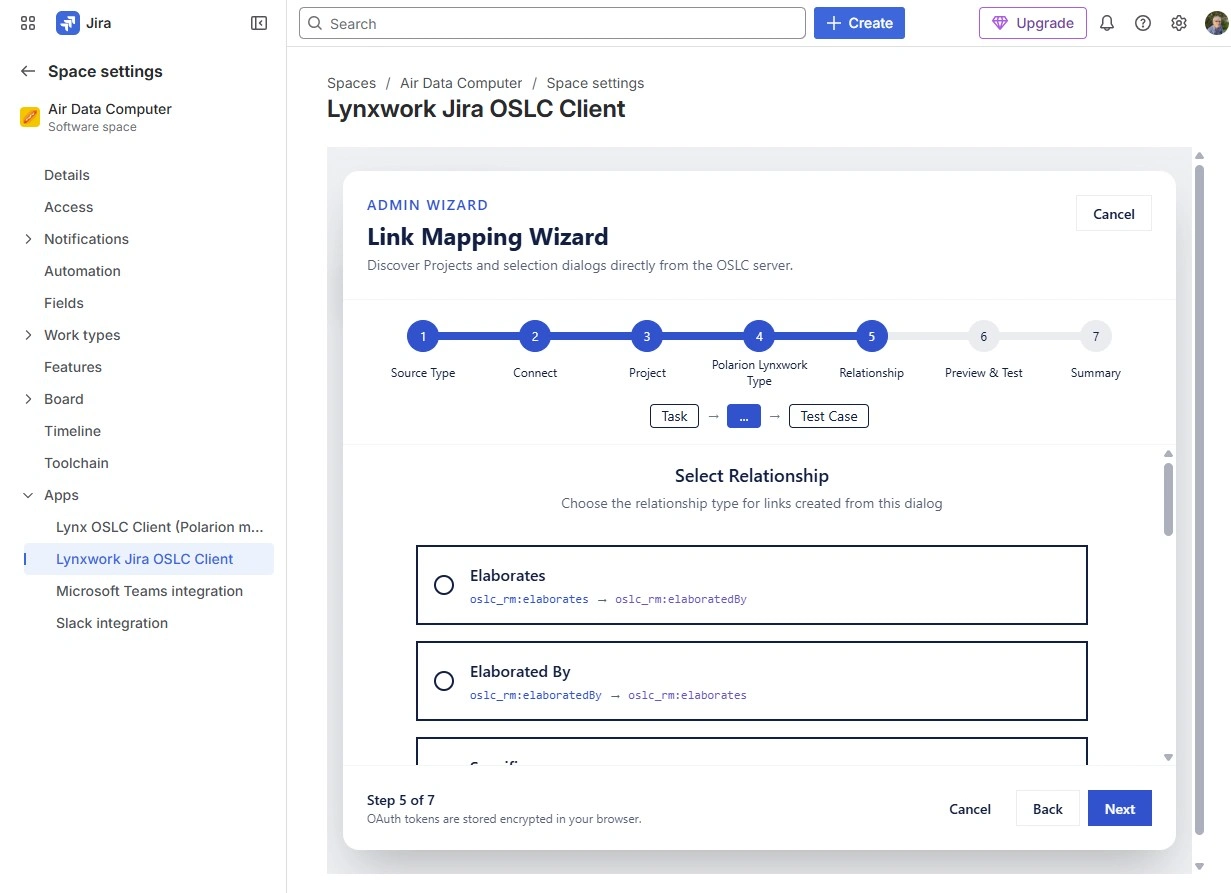
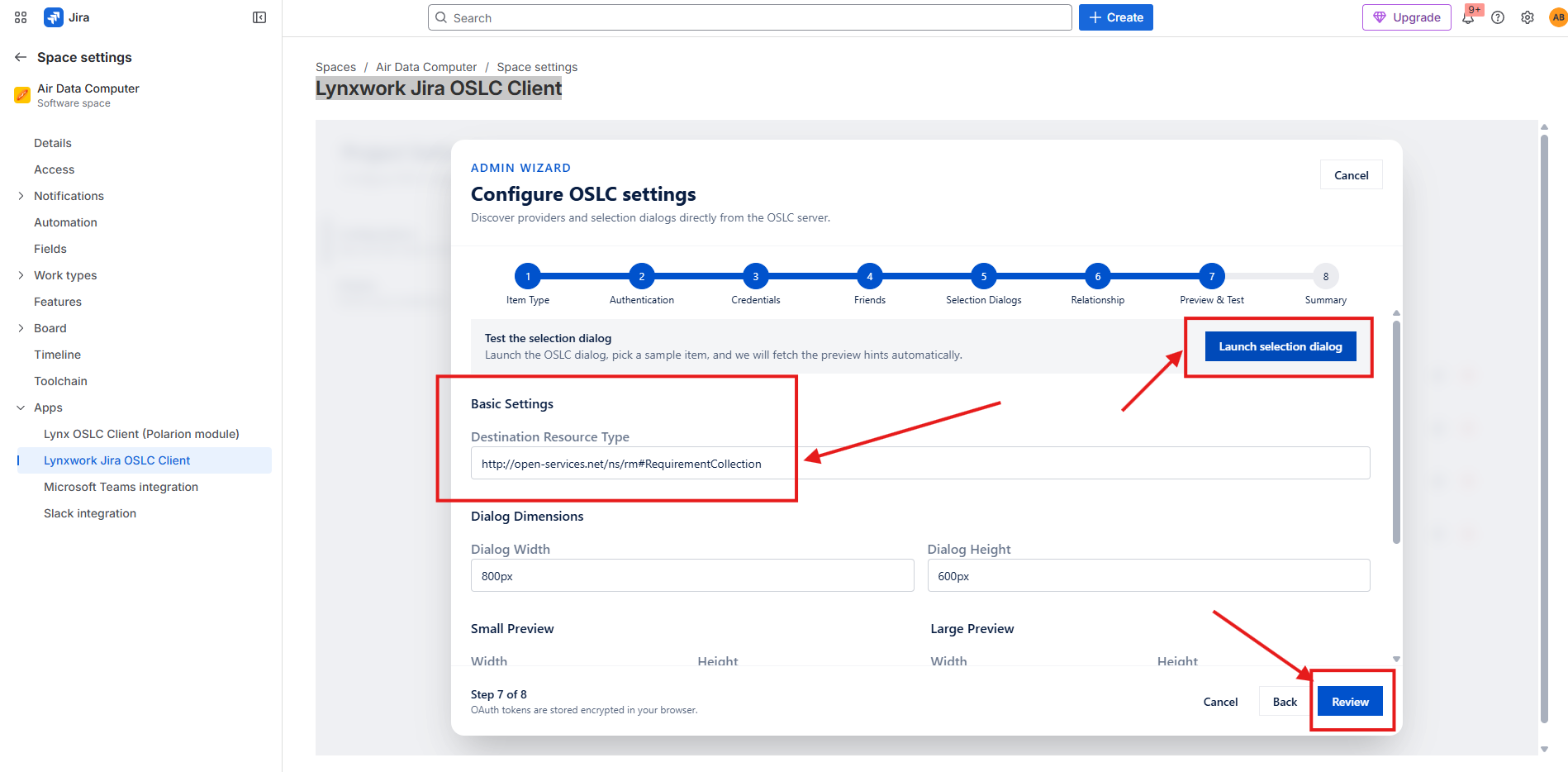
Review
-
Select Launch selection dialog to test your configuration, as well as allow the extention to determine some suitable settings.
-
Review and fine-tune the settings such as Destination Resource Type.
-
Select Review.
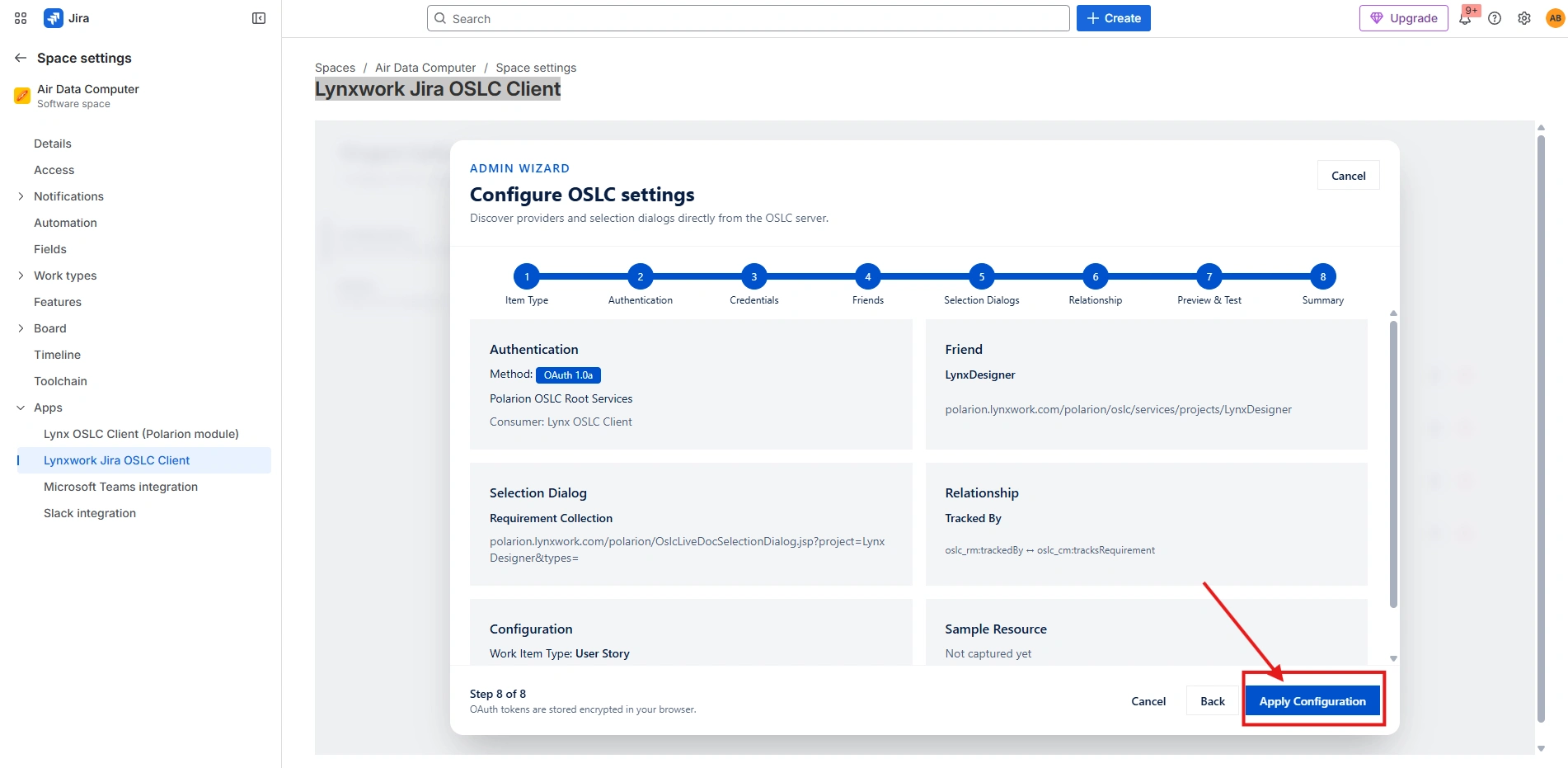
Summary
The wizard now shows all your choices in one view
-
Review and select Apply Configuration to save the settings to your project.
-
You can click Back at any time to adjust a previous step.
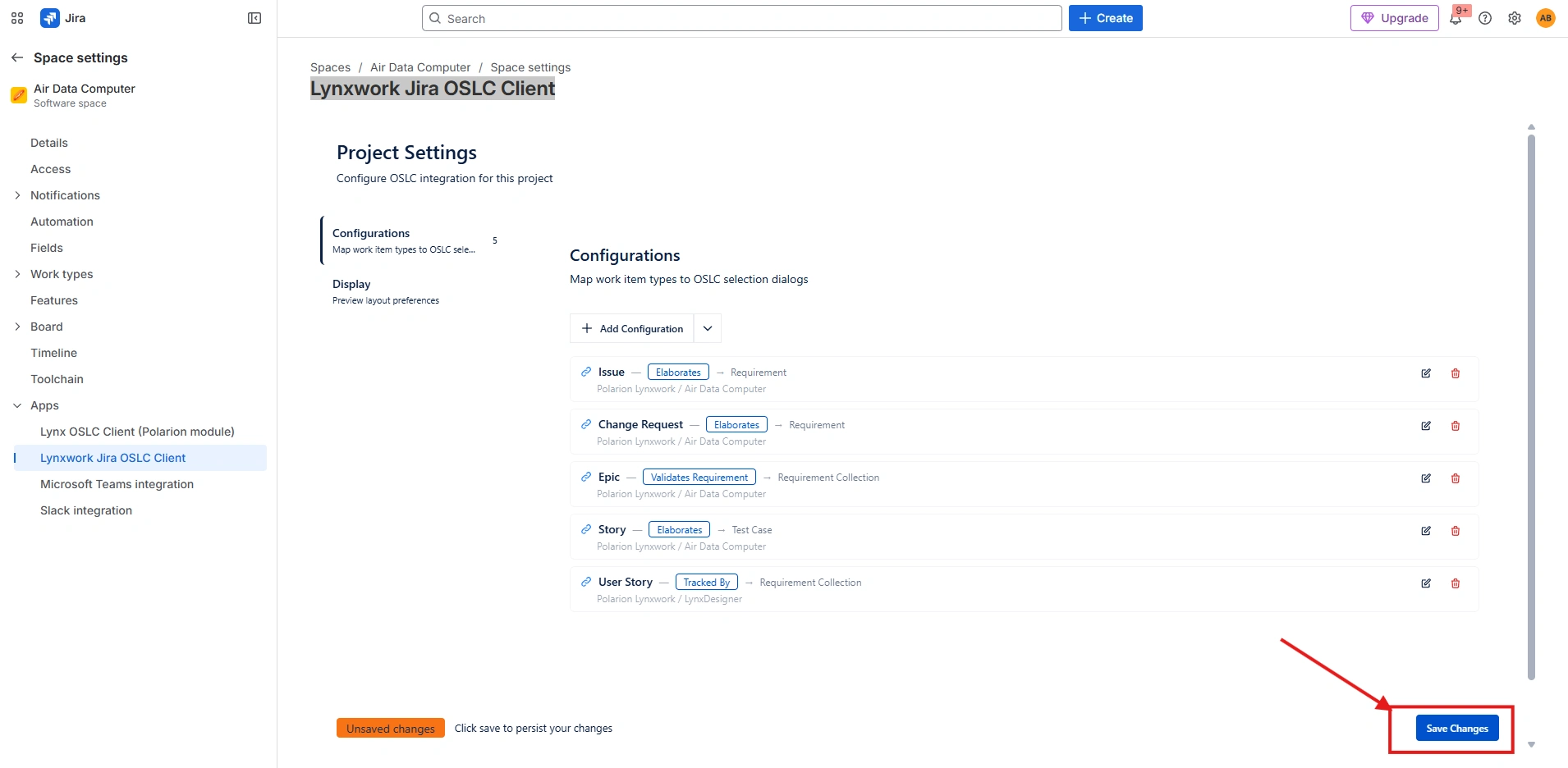
Save your changes
-
Save your changes.
-
Repeat the above steps for every mapping of item types to types in the Friend application.
-
Click Save Settings
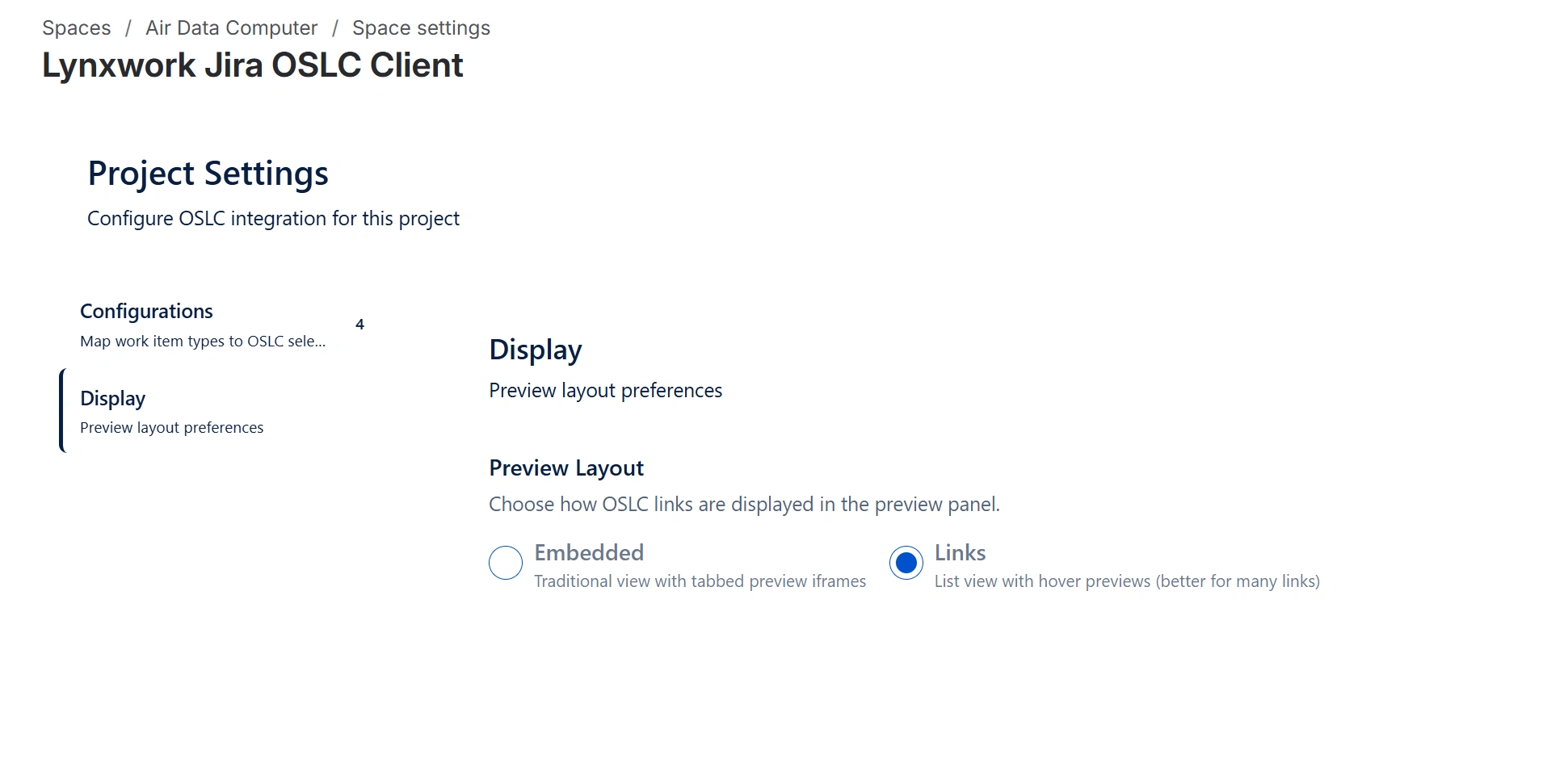
The extension configuration is complete.
Now, it’s time to use this extension.
Usage Guide
Now, it’s time to use this extension. Open one of the issues under your space
Jira Cloud
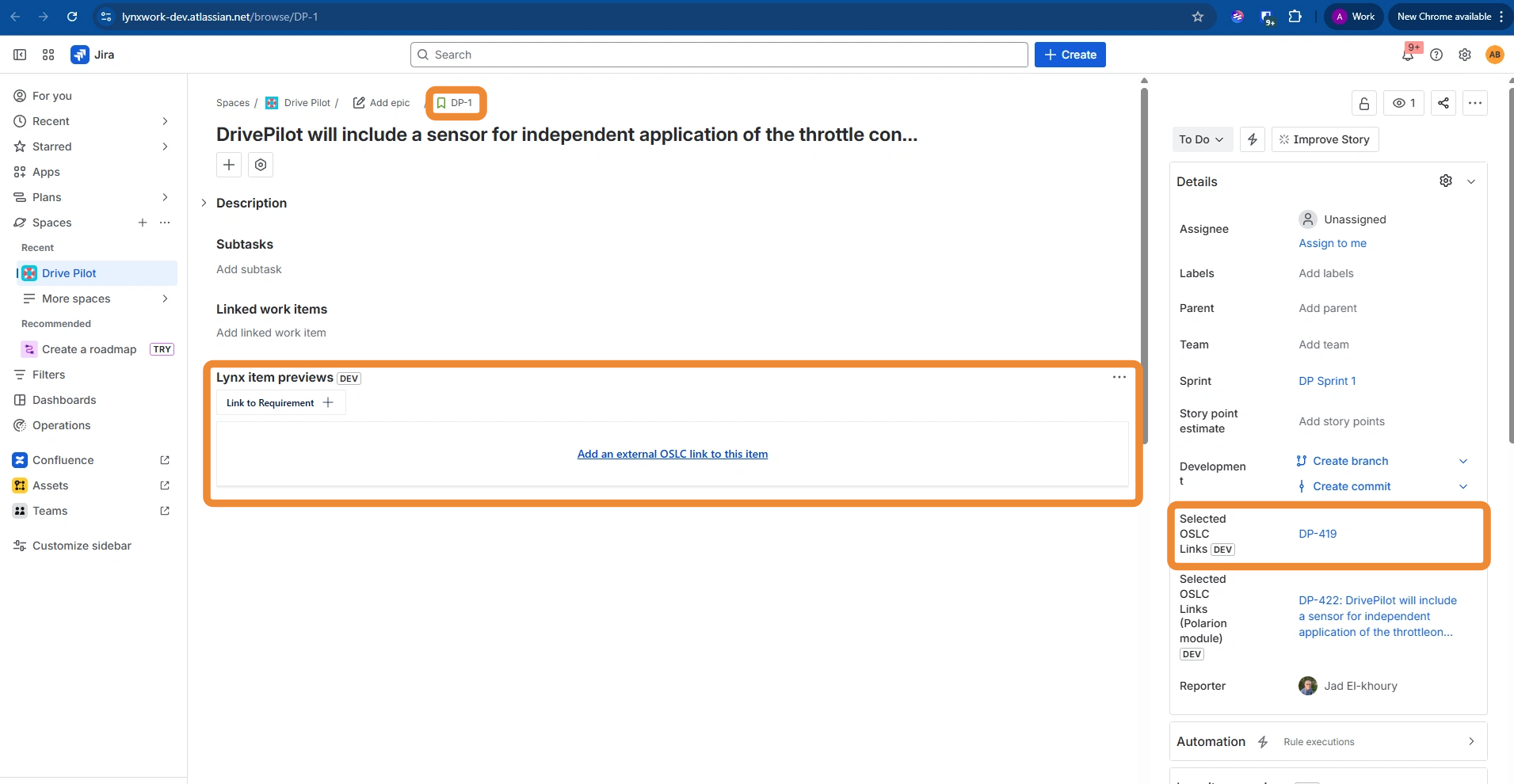
Open an issue in Jira Cloud.
Jira Data Center
Open an issue in Jira Data Center.
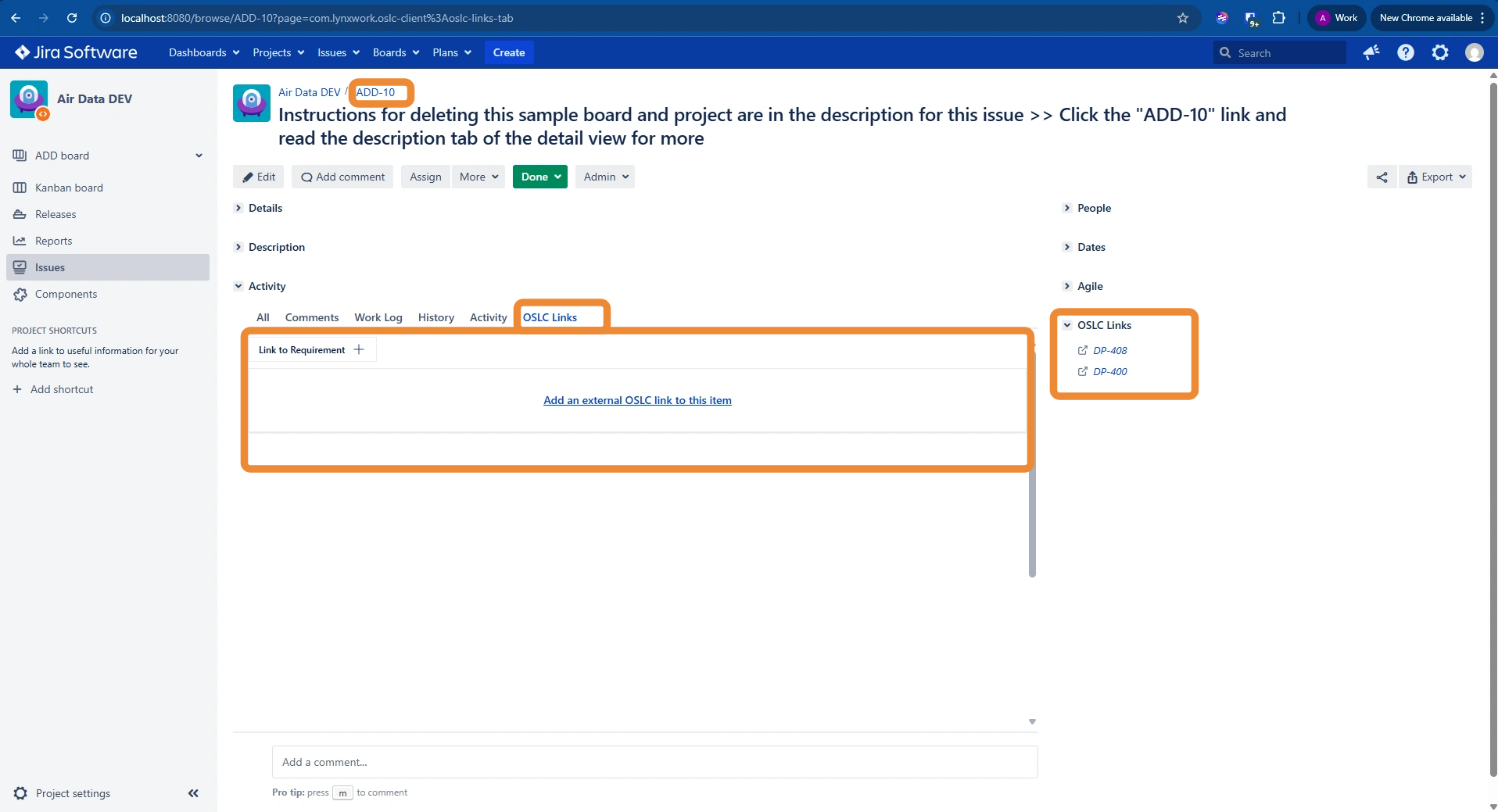
You can now see the Lynx Item Preview section. It’s position in the layout depends on the configuration choices you made earlier.
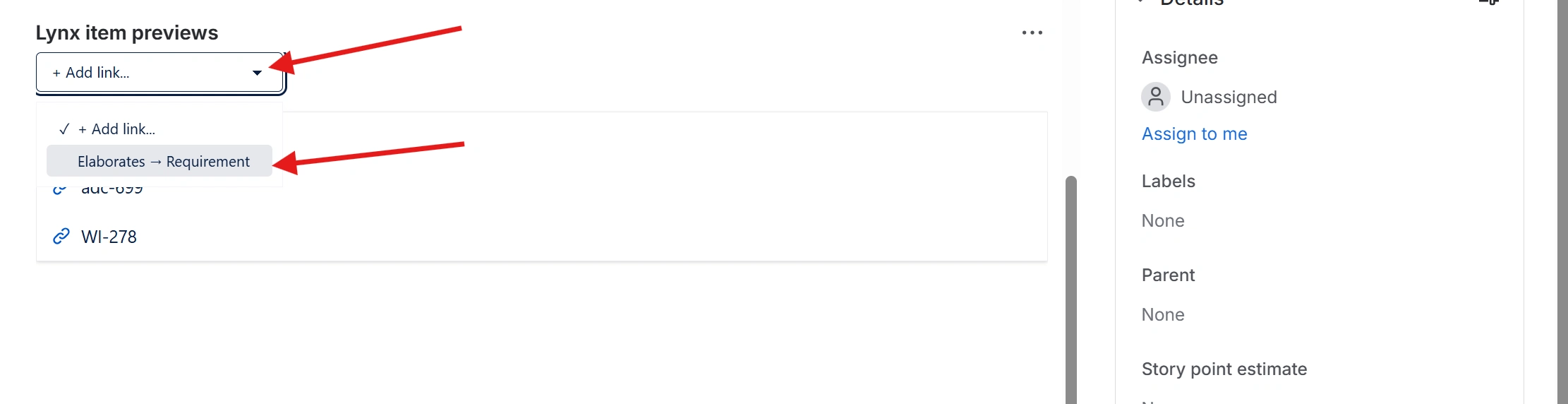
To create a link, select Add link…
-
Now the selection dialog from your external application appears. Search and select an item from the list.
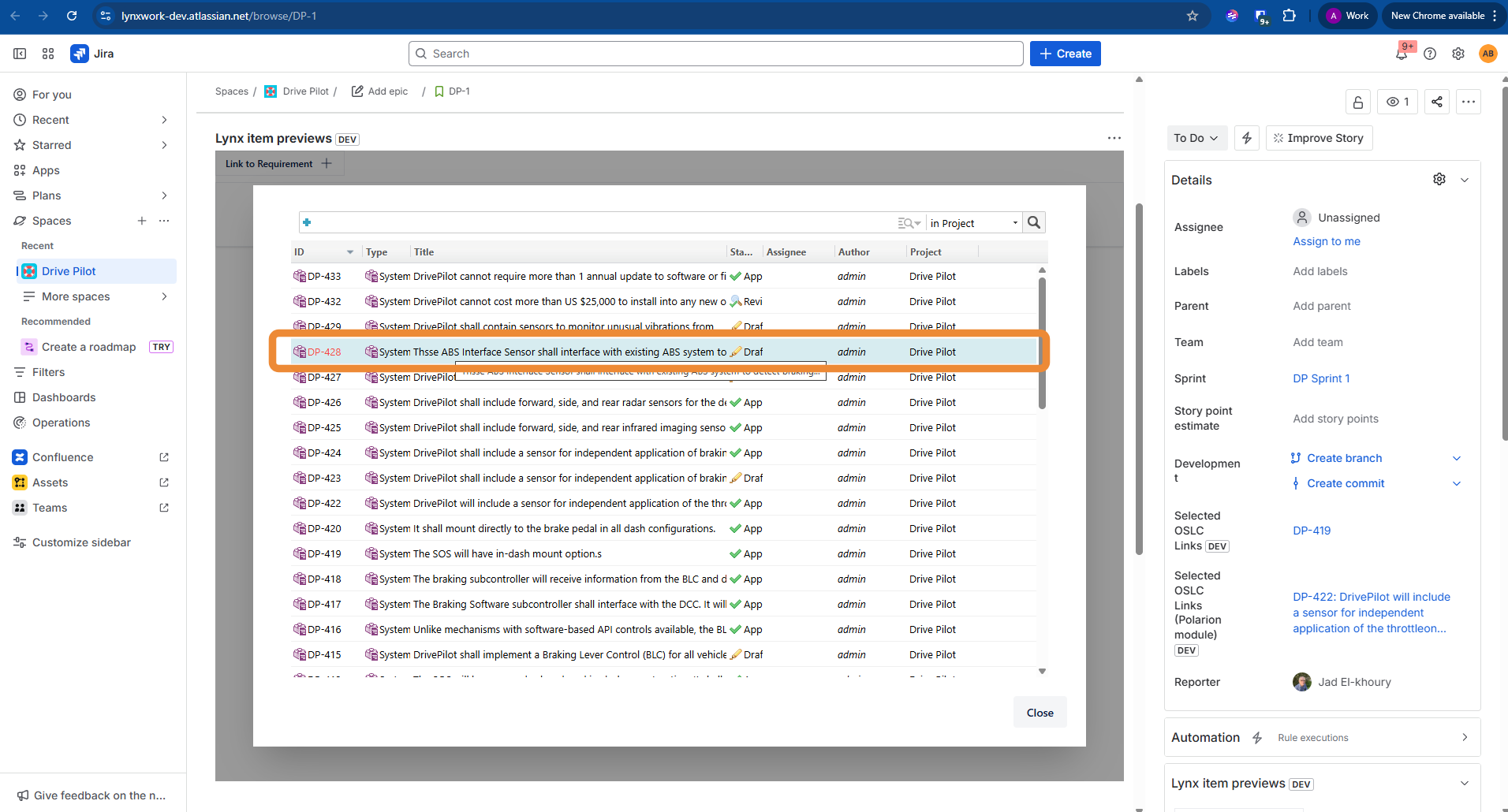
-
Click this radio button.
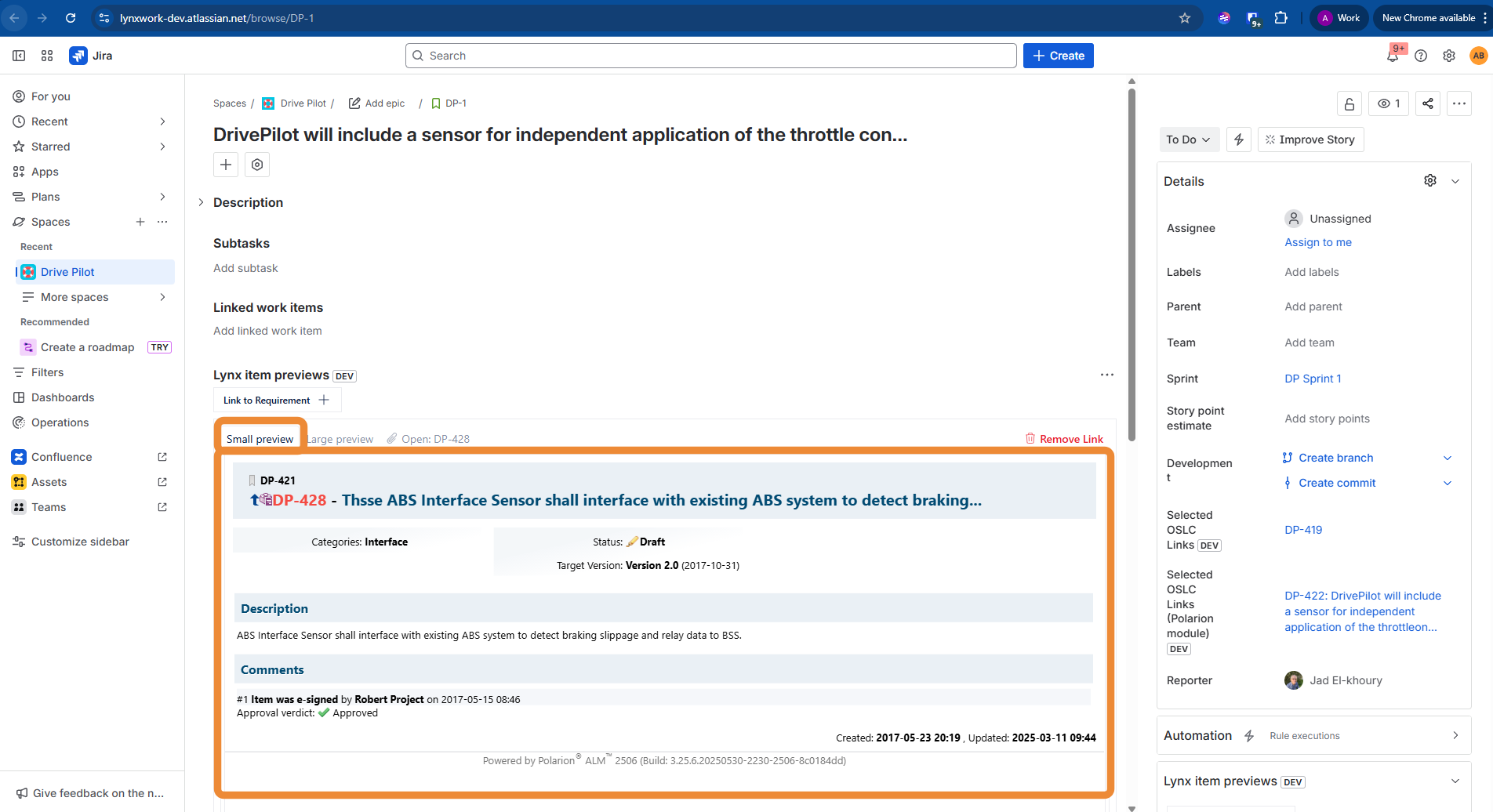
-
Click Open DP-429
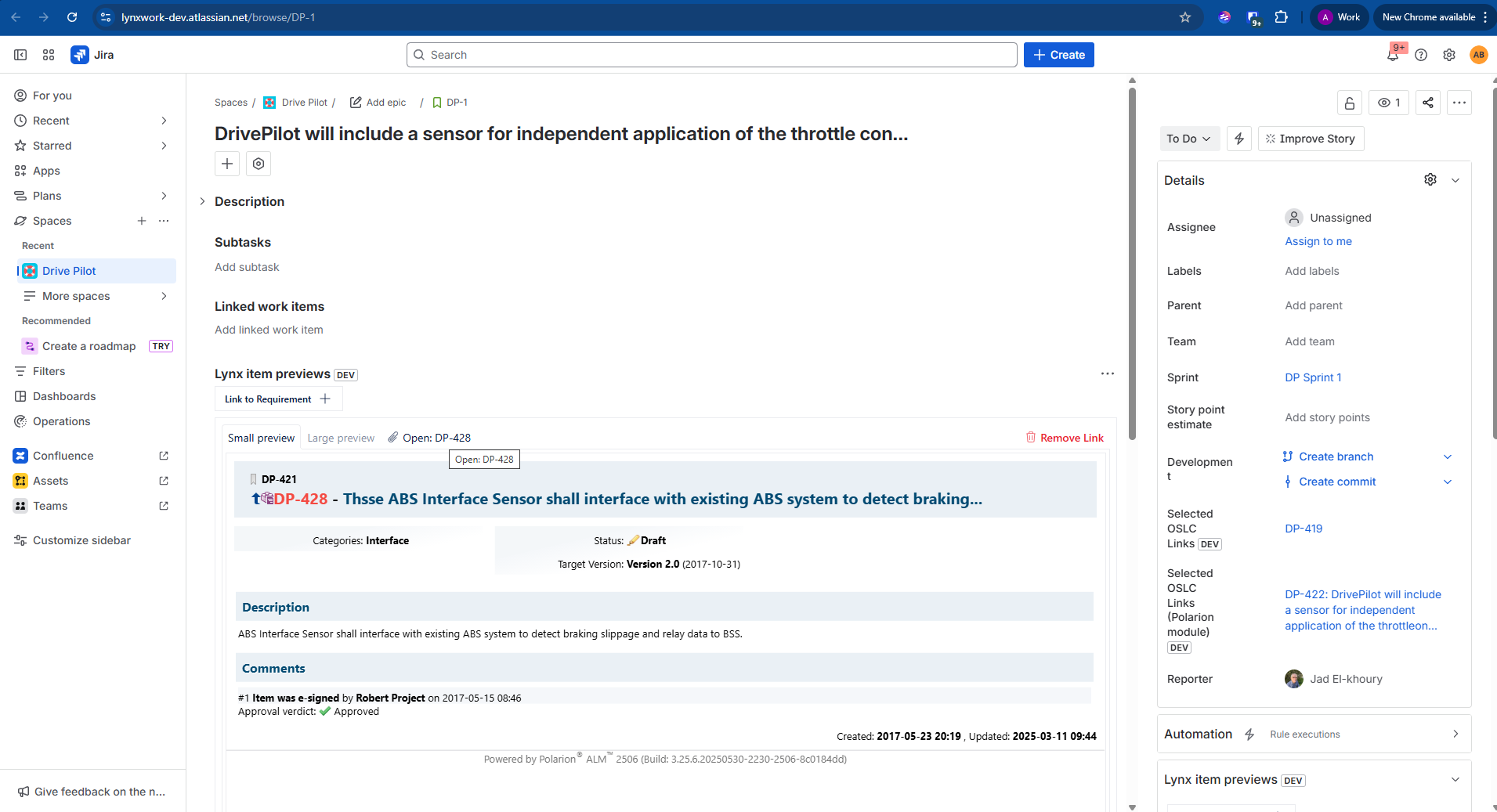
-
Click this icon.